






AI Image Upscaler
AI Image Upscaler – an intelligent tool dedicated to lossless image enlargement.
Tags:Lossless enlargement of AI imagesWhat is an AI Image Upscaler?
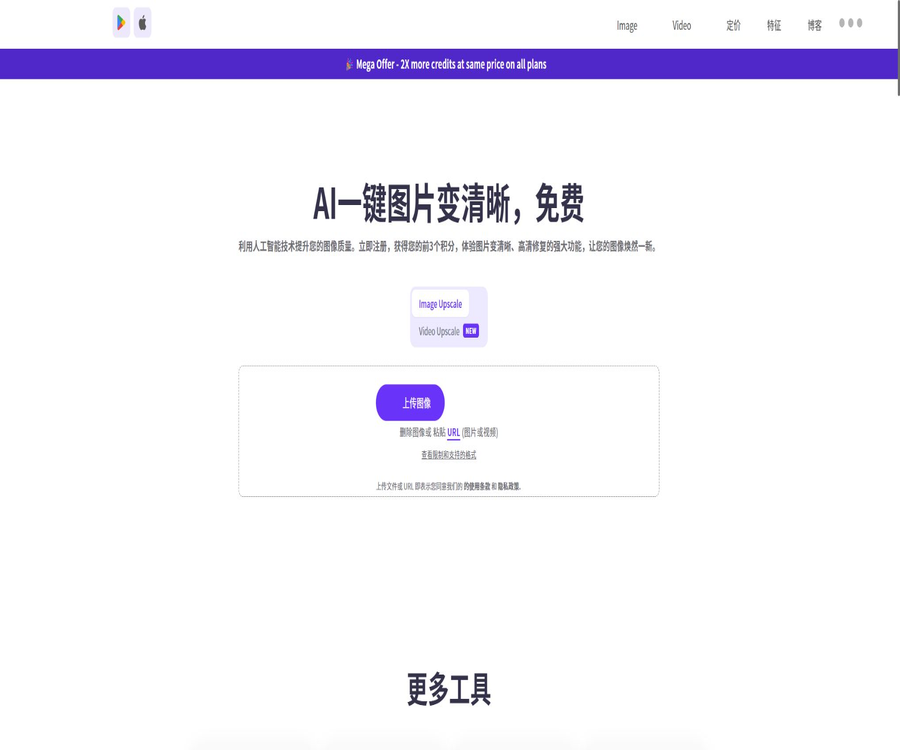
AI Image Upscaler is an online AI tool for enlarging images and improving their quality, provided by Upscale.media; it is operated by the PixelBin team. After users upload an image or paste its URL, they can increase its resolution, and they can also use various tools such as sharpening, face enhancement, blur removal, fog removal, and photo restoration.
It is designed for processing individual images, and batch conversion as well as the application of predefined settings can be carried out through the console after logging in. Enterprises or developers can also take advantage of PixelBin’s API, real-time image conversion capabilities, and services for media storage and delivery.
A one-sentence summary
Upscale.media AI Image Upscaler allows photos, product images, illustrations, and AI-generated images to be enlarged by up to 8 times in both browsers and mobile devices; it also uses AI to improve the edges, textures, faces, and overall clarity of these images.
Core functions
- AI image zooming: Offers scaling options of 1x, 2x, 4x, and 8x.
- Image quality enhancement: Improves edges, textures, and clarity by increasing pixel size.
- Face enhancement: Optimization of facial features, skin texture, and overall face clarity in portraits.
- Image sharpening: Enhances edge details and addresses issues of mild blur and softness.
- Photo editing: Smooths out textures and improves the overall quality of the photo.
- Remove blur: Address common issues such as out-of-focus, compression, or low clarity.
- Removing haze: Improving images with low contrast, fog, and a grayish appearance.
- Motion blur correction: Reduces the trailing effect caused by camera shake.
- Restoration of old photos: Repairing damaged photos and restoring visible details.
- Coloring of black-and-white images: Adding colors to black-and-white or faded photos.
- Batch conversion: After logging in, process multiple images in the PixelBin console.
- API Integration: Integrates uploading, conversion, presetting, and delivery into the business process.
How AI amplification works
Traditional scaling involves interpolation based on adjacent pixels, which often results in jagged edges and blurriness when the size is increased. AI-based scaling first identifies the main elements, lines, textures, and color relationships, then predicts new pixels to generate a larger image.
- Analyze characters, objects, backgrounds, and local textures.
- Set the target resolution based on the selected magnification.
- Reconstruct the edges and reduce prominent pixel blocks.
- Improves compression artifacts, noise, and low contrast.
- In portrait mode, the visible facial details are enhanced.
- It generates textures based on predictions, rather than recovering the original lost pixels.
Tutorial for enlarging a single image
- Open Upscale.media and prepare the original images that have the necessary permissions to be processed.
- Drag and drop local files, or paste the image URL that can be accessed directly.
- Verify that the format, file size, and input resolution comply with the current tier limitations.
- Choose 1x, 2x, 4x, or 8x depending on the use.
- Enable image quality enhancement or face enhancement as needed.
- Wait for the cloud to complete the processing and view the before-and-after results.
- Pay special attention to checking text, faces, logos, hair, and repeated textures.
- Download the result and review it at the target screen size or print size.
Batch Processing and API Tutorials
- First, use a few representative images to test the model, the magnification level, and the quality of the output.
- Register an account and access the PixelBin console.
- Create a media space and upload the images that need to be processed.
- Combine zooming, background removal, or other transformations into presets.
- Apply the same preset to a batch of images to avoid setting it repeatedly for each image.
- Developers can create tokens and choose to integrate using the official SDK or APIs.
- Set retries and alerts for failures, rate limits, and insufficient points.
- Check the results of the processing on a sample basis, and save the original image and the final product in one’s own system.
Supported formats and input restrictions
| Project | Current public rules | Explanation |
|---|---|---|
| Image format | PNG, JPEG, JPG, WebP, HEIC | Different auxiliary tools may support different formats. |
| Video format | MP4, MOV, WebM | Partial enhancement of entry support is available, up to 1 minute. |
| Login users: 1 time | Up to 20,000×20,000 pixels | It is still affected by files, memory, and processing power. |
| Login users doubled | Up to 10,000×10,000 pixels | The target output size increases as the magnification increases. |
| 4 times more logged-in users | Up to 5000×5000 pixels | High-resolution tasks take more time. |
| 8 times the number of logged-in users | Up to 2500×2500 pixels | Textures that are most likely to result from model speculation |
| Visitors: 1 time | Up to 10,000×10,000 pixels | Capabilities that do not require logging in are more limited. |
| Visitors doubled | Up to 5000×5000 pixels | Suitable for ordinary photos and web content |
| 4 times as many visitors | Up to 2500×2500 pixels | It is recommended to check the quality of the original image first. |
| 8 times more visitors | Up to 1250×1250 pixels | When exceeding the limits, reduce the input or login amount first. |
How to choose different magnifications
- The 1x setting is suitable only for tasks such as blurring removal, sharpening, face enhancement, or photo editing.
- 2x is suitable for web pages, e-commerce, presentations, and everyday screen content.
- 4x is suitable for smaller original images, high-resolution canvases, and medium-sized prints.
- 8x is suitable for images with a very small size but still clear subject.
- The higher the magnification, the greater the likelihood that the details will be altered by the model.
- For important images, it is advisable to examine them at multiple magnifications rather than using the highest setting by default.
More image enhancement tools
- Sharpening images: Enhances edges and local clarity.
- Photo editing: Improving texture, skin tone, and overall appearance.
- Enhance faces: Optimize facial features and details.
- Remove blur: Address mild defocus and blurry areas.
- Removing haze: Increasing contrast and improving the grayish appearance.
- Remove motion blur: reduce camera shaking and trailing effects.
- Image restoration: Repairing old, scratched, or damaged photos.
- Image coloring: Adds natural colors to black-and-white photos.
- Face restoration: Reconstructing the visible features of low-resolution faces.
- Background removal and replacement: carried out through the PixelBin console in a combined manner.
Which types of images are suitable?
- Photos with a clear subject but insufficient resolution.
- E-commerce product images that require an enlarged display size.
- AI-generated art, digital illustrations, and anime images.
- Social media covers, posts, and ad materials.
- Website banners, thumbnails, and presentation images.
- Portrait photos whose facial features need to be made clearer.
- Photos with mild blurriness, haze, noise, or compression.
- Old family photos that need to be repaired, colored, or redone.
Which tasks are not suitable for it?
- Images in which the subject is completely unrecognizable or severely out of focus.
- Evidence collection tasks that require the restoration of original license plate numbers, text, or details of evidence.
- Medical and research images that contain any generated details are not acceptable.
- Sensitive documents containing ID cards, medical records, contracts, or trade secrets.
- Materials that lack authorization from the rights holders of portrait rights or copyright.
- Workflows that require offline operation, use of an internal network, or ensure that data does not leave the domain.
- Archival preservation requires that color, size, and texture be absolutely faithful to the original.
Typical use cases
- E-commerce operations: Increase the resolution of product main images and detail images.
- Content creation: Using smaller-sized elements on larger social media platforms.
- Design and layout: Prepare high-resolution images for posters, banners, and presentations.
- Photo delivery: Improves mild blur, noise, and low contrast.
- AI art: The generated images can be enlarged for display or printed in smaller sizes.
- Organizing old photos: restoring them, enhancing the faces in them, and coloring them to preserve family photos.
- Development integration: Automatically processes avatar images, product photos, and media assets uploaded by users.
- Mass production: Uses predefined settings for scaling and background processing of multiple images.
Free version and logged-in account
Visitors can process 1 image for free each day without the need to register, which is suitable for one-time, individual image tasks. After registering for a free account, users receive 3 free credits and 3 free downloads per month; batch conversion and full access to the console require logging in.
- The visitor quota is suitable for initially testing image quality and compatibility.
- Free points do not automatically generate paid orders.
- Once the points are used up, the user can decide whether to subscribe or purchase a recharge pack.
- Zooming in on a single image usually costs 1 point.
- The actual consumption for complex or combined conversions can vary.
- Logged-in users can use a higher maximum input resolution.
Package and point prices
Upscale.media offers a free tier, automatic-renewing subscriptions, one-time package purchases, and corporate quotes. The pricing page changes dynamically depending on the currency, duration, promotions, and the selected package level; the following are representative options displayed publicly for reference.
| Type | Price examples | Points or benefits | Validity period and target audience |
|---|---|---|---|
| Free | $ | 3 downloads per month, 3 free times | Light experience and occasional use |
| Subscription | Page example: $69.99 per year | Subscription points are awarded according to the selected tier. | Continuous or batch processing; automatic renewal |
| 60 points at a time | 4.99 dollars | 60 points | Use within 1 year after purchase |
| 125 points at a time | 9.99 dollars | 125 points | Use within 1 year after purchase |
| 500 points at a time | 24.99 dollars | 500 points | Use within 1 year after purchase |
| 1200 points at a time | 54.99 dollars | 1200 points | Use within 1 year after purchase |
| Enterprise | Contact sales for a quote | Custom points, bulk processing, API, and support | Integration of high-volume enterprises with platforms |
Points, renewal, and refund policies
- A single upscale process using Upscale.media typically involves 1 point.
- Combined or complex conversions may require more points depending on the actual task.
- The number of subscription credits is updated at the end of each billing cycle.
- Unused subscription credits become invalid at the end of the period.
- Points purchased in a single transaction are valid for 1 year from the date of purchase.
- One-time points and purchased plans are generally not refundable.
- Subscriptions are automatically renewed on a periodic basis, but can be canceled at any time.
- Whether it remains available after cancellation shall be determined as indicated on the account billing page.
- Prices and promotions may change; it is necessary to check the checkout page before making a payment.
How to choose a payment plan
- Only a small number of images are processed each month; you can use the free quota first.
- Occasionally, when there are project requirements, one-time point packages are given priority.
- By processing a large volume of materials on a monthly basis, it is possible to compare the cost per unit for subscriptions.
- The PixelBin console is used when batch processing, combining presets, and managing media is required.
- For programmed calls, higher limits, or service support, please contact Enterprise.
- First, calculate the pass rate using sample pieces, and then estimate the actual number of points required.
APIs and developer capabilities
The batch processing and development capabilities of Upscale.media are built on the PixelBin platform; developers can use APIs or the official SDK to carry out tasks such as uploading files, managing media, converting images, setting presets, generating addresses, and performing AI-based predictions. It is not a single free interface that only provides enlarged images.
- Access protected management and processing capabilities via tokens.
- Combine multiple conversion steps in real time using image URLs.
- Create presets and reuse them across multiple media assets.
- Upload the original image to the media library for storage and management.
- Use official SDKs such as Python and JavaScript.
- Reduce redundant conversions and interface usage through caching.
- The overall public limit for AI conversion is 300 requests per minute.
- A 429 status code is returned when throttling is triggered; cache hits are not taken into account in the throttling process.
Privacy and document retention
The official privacy policy classifies images uploaded by users as sensitive personal data, stating that such images are stored anonymously. The platform may collect, process, store, or transmit this information to authorized service providers for the purposes of providing services, conducting analyses to improve performance, ensuring compliance, and resolving disputes.
- The privacy policy does not guarantee that all images will be automatically deleted after a certain number of hours.
- The information will be retained for as long as it is necessary to achieve the policy objectives, and possibly for an even longer period if permitted by law.
- Users can contact support to request the deletion of some or all of their personal information.
- Uploading images goes through cloud servers, which is not the same as processing them offline on a local device.
- Do not upload identification documents, client confidential information, or regulated images.
- Before connecting to a company, it is necessary to examine where the data is stored, who the sub-processors are, and what the deletion procedures are.
The authenticity amplified by AI
AI enhancement generates edges and textures that the model deems reasonable; therefore, “greater clarity” does not mean “restoration of reality.” Text, facial features, and object details that are absent or indistinguishable in the original image may be filled in by the model.
- Changes may occur in the eyes, teeth, skin, or hair of a person’s face.
- Small text, logos, numbers, and watermarks may be incorrectly reconstructed.
- Repeating textures can produce unnatural patterns.
- Higher magnifications are more likely to produce illusory details than lower magnifications.
- The coloring result is an estimate and does not represent the object’s original color.
- In forensic, medical, and academic contexts, the original documents must be retained.
Ways to improve output quality
- Try to upload the original files, avoiding repeated screenshotting and compression.
- First, remove the irrelevant areas so that the model can focus on the main subject.
- For mild enhancement, start by testing at 1 times or 2 times the intensity.
- Choose 4x or 8x only when the size is truly insufficient.
- Even after enabling face enhancement for portraits, it is still necessary to check the facial features.
- When checking product images, pay close attention to the text, trademarks, edges, and material.
- Compare the results of sharpening, deblurring, and zooming separately.
- Create a test sample at the actual size before printing.
Product advantages
- It can be used on the web without the need to install any desktop software.
- It supports a variety of processing intensities ranging from 1x to 8x.
- It supports the five most common image upload formats.
- The login requirements and the maximum number of visitor entries are clearly stated.
- Integrated sharpening, face enhancement, de-blurring, and photo restoration.
- Android and iOS mobile apps are available.
- Both free visitors and registered accounts can try it out first.
- One-time points are tailored to different usage frequencies based on subscription plans.
- PixelBin supports batch, preset, API, and media management.
- The official sources provide SDKs for multiple programming languages.
Usage restrictions and precautions
- AI is unable to reliably restore the true details that have been lost from the original image.
- The free quota is very limited, making it unsuitable for continuous bulk production.
- Visitors can process 1 image for free per day.
- The maximum input resolution at high magnification is lower than that at low magnification.
- The number of points required for complex conversions can be higher than that for a single scaling operation.
- Subscription credits are not carried over to the next billing cycle.
- Paid plans and one-time credits are generally not refundable.
- An account registration is required for both batch and full console usage.
- Cloud storage and cross-border processing are not suitable for highly sensitive images.
- API has restrictions on data flow, quotas on the number of requests, as well as constraints at the storage and organization levels.
GitHub and open source
The Upscale.media web services, scaling models, training data, and inference systems are not made available as open-source projects; therefore, this tool should be considered a commercial, closed-source service. The public repositories come primarily from the PixelBin organization, and they contain development tools such as SDKs and address conversion functions.
The Python SDK, backend JavaScript SDK, and Core SDK for PixelBin are available on GitHub; however, the fact that these SDKs are made public does not mean that the Upscale.media models are open source. When deploying or redistributing them, it is necessary to check the license of each repository separately.
Supported platforms
| Platform | Support status | Suitable uses |
|---|---|---|
| Web | Support | Single image upload, address import, and result download |
| Android | Provide official apps | Quick enhancement of phone photos |
| iPhone and iPad | Provide official apps | Processing of footage captured on mobile devices |
| PixelBin console | Use after logging in | Batch, preset, media management, and billing |
| Develop interfaces | Support | Automated processing of business systems |
| Official SDK | Supports multiple programming languages | Upload, conversion, and media management integration |
Basic information
| field | Content |
|---|---|
| Product name | AI Image Upscaler / Upscale.media |
| Operating entity | Shopsense Retail Technologies Limited |
| Product category it belongs to | PixelBin |
| Tool type | AI image enlargement, enhancement, and restoration |
| Maximum magnification | 8 times |
| Image format | PNG, JPEG, JPG, WebP, HEIC |
| Price pattern | Free quota, subscriptions, one-time credits, and corporate quotes |
| Whether API is provided | Yes; it is provided through PixelBin. |
| Is it open source? | The product is not open-source; the vendor provides some SDK repositories. |
Recommendation score
4.5 / 5. Upscale.media is easy to use, offers a wide range of scaling options, and can be integrated into batch processing and API workflows; it is suitable for creators, e-commerce businesses, and development teams. However, the free tier provides limited usage, and cloud privacy as well as the quality of AI-generated content require careful consideration.
Frequently Asked Questions
Is the AI Image Upscaler free?
A free trial is available; visitors can process 1 image per day. After registration, 3 free credits and 3 free downloads are provided per month.
What is the maximum magnification level?
The current web uploader offers a maximum magnification of 8 times, but the resolution limit for this 8x setting is lower than that for 1x, 2x, and 4x.
Which image formats are supported?
It supports PNG, JPEG, JPG, WebP, and HEIC.
How many points does a picture cost?
A single amplification usually involves 1 point value, while complex or combined conversions may vary.
Is batch processing supported?
Supported; after registration, it is possible to upload files in bulk and apply predefined settings through the PixelBin console.
Are APIs provided?
Developers can take advantage of image processing capabilities through the PixelBin interface and the official SDK.
Will the uploaded image be deleted immediately?
The privacy policy does not guarantee that images will be automatically deleted after a set number of hours, and it states that images are stored anonymously; it is not recommended to upload sensitive images.
Can the true details be restored when enlarged?
It cannot be guaranteed that AI will predict pixels and textures; the resulting image may be clearer, but it might also contain details that are not present in the original image.
Is the AI Image Upscaler open source?
The products and models are not open source; PixelBin only makes some of the SDKs and development tool repositories available to the public.
Tools similar to the AI Image Upscaler


 Guigong Network Security Registration No. 45132202000164