






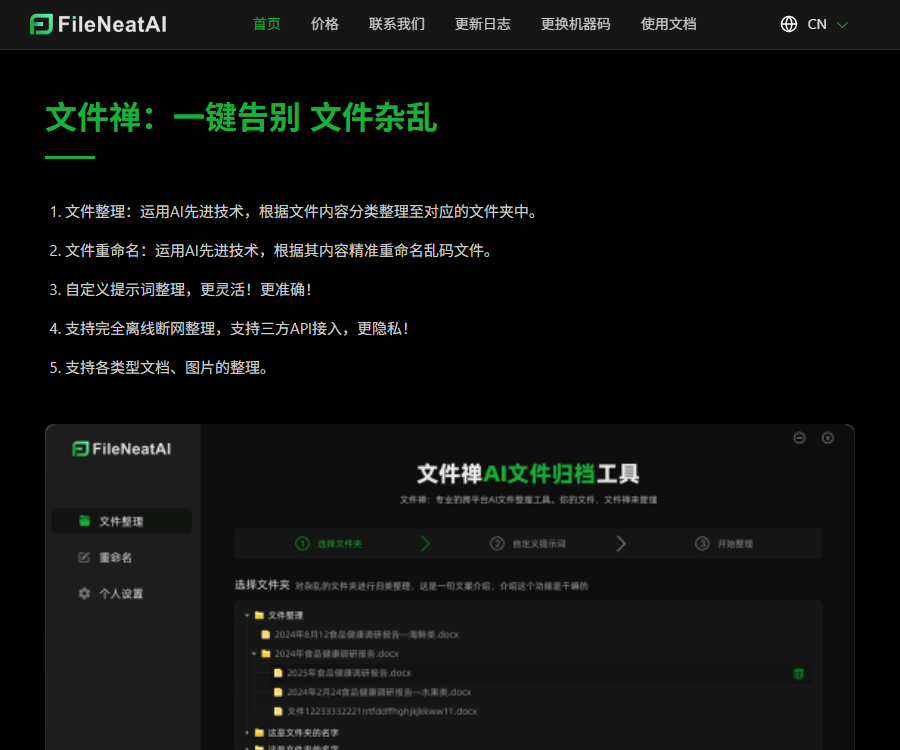
Document Zen
Based on the content of the files in a folder, AI can automatically classify them and organize them into different folders. It can also assign intelligent names to files with irregular naming conventions, thereby helping users manage their files more easily and efficiently and improving work productivity.
Tags:AI improves efficiencyWhat is File Zen?
The English name of FileZen is FileNeatAI; it is a desktop tool that uses AI to organize and rename local files.
It can read the content of files, automatically organize folders into categories, and change corrupted or meaningless file names into readable ones.
Main functions
- Classify automatically based on the content of the file.
- Rename in batches based on the content.
- Organize using custom prompts.
- Provides a procedural organization process.
- Create a local file index.
- Identify the content of documents and images.
- It supports continuing the organization after an interruption.
- Provides local file search.
- Supports online AI models.
- Integration with Ollama and LM Studio.
- Connect to custom third-party APIs.
- Run offline using an offline license without an internet connection.
Supported platforms
The official website currently recommends version 3.0.35, and provides installation packages for Windows, macOS, and Ubuntu Linux.
| Platform | Official support | Installation key points |
|---|---|---|
| Windows | Support | Download the corresponding installation package and retain permissions for the installation directory. |
| macOS Intel | Support | Select the Intel chip version |
| macOS ARM | Support | Suitable for Apple chip devices |
| Ubuntu Linux | Support | Verify the system architecture and execution permissions. |
| Mobile version | Not available yet | The product is positioned as a desktop file management tool. |
AI file classification
The file classification feature analyzes the name and readable content of the files, then moves them to folders suggested by the system or those specified by the user.
- Select the source folder that needs to be organized.
- Verify that there are no files currently being edited.
- Choose between an online model or a local model.
- Enter the industry, application, and classification requirements.
- Let the system generate a preliminary classification scheme.
- Check the folder name and hierarchy.
- First, use a small number of copies for testing and organization.
- Process the complete directory after confirming the results.
- Randomly select files that cannot be recognized correctly.
- Adjust the prompt further based on the results.
Custom prompt organization
Custom prompts can transform generic categories into a directory structure that fits the habits of an individual or a team.
| Scene | Key points of the prompt | Example categories |
|---|---|---|
| Administrative information | By year, department, and matter | Notifications, systems, meetings, and procurement |
| Project file | By project, phase, and deliverable | Requirements, design, development, and acceptance |
| Financial documents | By year, month, and voucher type | Invoices, reimbursements, contracts, and account reconciliations |
| Study materials | By discipline, course, and document purpose | Textbooks, notes, assignments, and papers |
| Image materials | By topic, target audience, and channel of use | Products, events, social media, and archives |
How to write prompts
High-quality prompt instructions should specify the classification objectives, hierarchy, naming format, directories that must be retained, and files that cannot be moved.
- Indicate the business or project to which the document belongs.
- Limit the depth of directory levels to avoid excessive complexity.
- List the primary categories that must be used.
- Explains the naming format for dates and numbers.
- It specifies that it is not possible to determine the whereabouts of the file.
- Exclude system files and temporary files.
- The original file extension must be retained.
- Test first, then expand the scope of processing.
Process-based organization
The update log indicates that version 3.0.32 introduces procedural organization, which enables the AI to understand and carry out complex classification tasks in stages.
- Scan the current directory and file types.
- Identify readable content and metadata.
- Develop a preliminary classification plan.
- Create the target directory according to the rules.
- Process in batches and keep track of progress.
- Mark abnormal files separately.
- After an interruption, it resumes from the recorded position.
- The final organized result is output for inspection.
Batch rename
File Zen is capable of generating clearer file names based on the text content, image content, or existing metadata; it is suitable for handling downloaded files and scanned documents.
| File type | Suggested field names | Precautions |
|---|---|---|
| contract | Date, recipient, and project | Retain the contract number |
| Invoice | Date, amount, and merchant | Verify the accuracy of recognition. |
| Meeting minutes | Date, topic, and department | Avoid disclosing information about attendees. |
| Paper materials | Author, year, and title | Handle illegal file name characters |
| Product images | SKU, color, and angle | Do not change the file extension. |
| Scan | Document type and key topics | Low-resolution content may result in incorrect recognition. |
Batch Rename Tutorial
- Create a copy of the file to be processed as a backup.
- Place the files in a separate testing directory.
- Select the file renaming function.
- Specify the named fields and sorting order.
- The original file extension must be retained.
- Preview the corresponding relationship between the old and new names that have been generated.
- Check the dates, numbers, and proper nouns.
- Perform the first round of renaming for a small number of files.
- Process all files after confirming the results.
- Use the backup for recovery when issues are detected.
File indexing and recognition
3.0.31 introduced file indexing and file recognition; 3.0.30 added local file search, which helps users locate organized materials.
- An index is not a complete backup.
- The index needs to be updated after moving a file.
- The quality of image recognition is affected by clarity.
- Scanning documents may rely on text recognition.
- Encrypted or corrupted files may not be readable.
- The search results should return the original file for verification.
- The index range for sensitive directories should be restricted.
Online model
In the online mode, official cloud AI interfaces such as DeepSeek and ChatGPT are used, so users do not need to set up a local environment.
| Features | Explanation |
|---|---|
| Barrier to entry | After installation, simply select the model to use it. |
| Network requirements | A stable internet connection is required. |
| Billing method | One file consumes one point. |
| Points expiration date | The official website states that it never expires. |
| Data boundary | The content of the file may be sent to an online service. |
| Suitable for users | Low-frequency use or no desire to deploy the model |
Local model
The local model mode allows integration with tools such as Ollama and LM Studio, enabling AI inference to be carried out on one’s own computer.
- The content of the file does not need to be uploaded to the official cloud.
- Local processing does not consume online file credits.
- The speed at which the model runs depends on the computer’s hardware.
- Large models require more memory or GPU memory.
- A larger model size does not necessarily mean more stable sorting results.
- The model file needs to be downloaded for the first use.
- All dependencies should be tested before going completely offline.
Local model configuration tutorial
- Purchase a package to unlock local models.
- Install Ollama or LM Studio.
- Download the instruction model suitable for the hardware.
- Start the model service locally.
- Copy the model address and model name.
- Select the local model in File Zen.
- Enter the service address and the necessary parameters.
- Test with a small amount of files that do not contain sensitive data.
- Check the speed and accuracy of classification.
- Confirm that the task can still be completed even when there is no internet connection.
Integration with third-party APIs
FileZen allows users to configure third-party model APIs, so as to choose their own service providers, models, and pricing plans.
- Choose compatible and stable API services.
- Save the keys in a secure manner.
- Do not include the key in shared screenshots.
- Verify whether the content of the document will be retained.
- Check input/output billing and throttling.
- Set limits for costs and retry attempts in case of failures.
- Re-test the performance after changing the service provider.
Offline License
Once the amount required to unlock the local model is reached, a permanently valid offline License file can be downloaded using the machine code.
- Copy the machine code in the software’s personal settings.
- Go to the official offline license download page.
- Enter the machine code and check the payment status.
- Download the corresponding License file.
- Rename the file to license.dat.
- Place the file in the software installation directory.
- Fully shut down and restart FileZilla.
- Disconnecting from the network tests the functionality of the local model.
Complete tutorial for using FileZen
- Download the installation package that is compatible with your computer platform.
- After installation, create a test folder first.
- Back up the original files that need to be organized.
- Choose an online, local, or third-party model.
- Enter the classification objectives and naming conventions.
- First, scan a small number of files and preview the results.
- Modify the classification hierarchy and prompts.
- Execute the first batch of organization or renaming.
- Randomly check the contents of the files against the target directory.
- Extended to handle full folders.
- Update the index and test local retrieval.
- Save the rules for use in the future.
- Regularly back up important data and configurations.
Price and package comparison
File Zen relies on a system of free usage credits along with purchases using file points; a payment of 100 yuan unlocks both local models and offline licenses.
| Package | Price | Number of online files | Local model |
|---|---|---|---|
| Free version | Free | 100 times for new users | Not supported |
| Initial deposit | 29 yuan | 2000 files | Do not unlock |
| Advanced top-up | 59 yuan | 6000 files | Do not unlock |
| Local model version | 100 yuan | 20,000 files | Permanently unlocked for unlimited use |
Officials state that online points never expire; after making a payment it is necessary to restart the software, and it is important to check both the live page and the machine code before making a purchase.
How to choose a package
| User information | Suggestions | Focus on evaluation |
|---|---|---|
| First experience | Use the 100 free trials first. | Recognition rate and classification logic |
| Organize occasionally | 29 yuan package | Cost per single file |
| Medium batch size | 59 yuan package | Estimated total number of files |
| A large number of files | Compare the 59-yuan and 100-yuan price ranges | Local hardware and privacy requirements |
| Sensitive information | 100 yuan for the local model version | Fully offline verification |
| Corporate team | First, consult about the authorization method. | Machine binding and after-sales coverage |
Privacy and data security
The data pathways for online, local, and third-party API modes are different; it is necessary to determine the sensitivity level of the file before selecting a model.
| Pattern | Data path | Safety recommendations |
|---|---|---|
| Online model | The content may be sent to the official online service. | Avoid handling highly sensitive files. |
| Local model | Processed in the local model. | Verify and protect devices in the event of a network outage |
| Third-party API | Send to the selected API service provider | Review its privacy and retention policies. |
| File index | Saved in the local environment | Restrict directory and system permissions |
- Create a complete backup of the source directory before organizing it.
- Close the files that are currently being edited and synchronized.
- For sensitive files, local models should be used preferentially.
- Do not save API keys in shared directories.
- Enterprise equipment is isolated by permissions for different projects.
- Regularly check the indexes and temporary caches.
Accuracy and recovery
AI may misjudge the content of files or generate incorrect names; any large-scale movement or renaming of files should be tested first, with backups kept on hand.
- First, copy it rather than working directly on the original unique copy.
- Only a manageable number of items are processed per round.
- Maintain the correspondence between old and new paths and names.
- Numbers, dates, and proper nouns are manually reviewed.
- Files that cannot be identified are placed in the pending processing directory.
- After the program is interrupted, check the location where the breakpoint resumes execution.
- Users of synchronized disks need to prevent the spread of incorrect synchronizations.
API and open-source status
FileZen supports the integration of local models and third-party APIs, but this does not mean that it provides developers with public APIs for file processing.
The official website states that the product was developed using LangChain; however, no verifiable files can be found in the official open-source repository of Zen.
| Project | Open status | Explanation |
|---|---|---|
| File Zen software | Not open source | Commercial desktop applications |
| Integration with third-party APIs | Support | Users connect to external models |
| Public API for file processing | Not yet made public | No developer documentation was found. |
| Official SDK | Not yet made public | No installation package was found. |
| LangChain | Open-source dependencies | It doesn’t mean that the source code of FileZen is open. |
| Official GitHub | Not confirmed yet | No verifiable repository found. |
Which users are it suitable for
- Individual users whose desktop files are in a state of chaos over time.
- Managers who need to organize project documents.
- Researchers who work on batch processing of downloaded files.
- Administrative staff responsible for managing contracts and scanned documents.
- Operational teams that need to standardize image naming.
- Users who value privacy and are able to run local models.
Product advantages
- Categorization and renaming address common organization needs.
- Supports custom classification rules in natural language.
- Versions for Windows, macOS, and Ubuntu are available.
- Supports online, local, and third-party models.
- Local models can be processed entirely offline.
- A one-time purchase in the 100-yuan range provides permanent unlocking.
- It provides indexing, retrieval, and resuming from breakpoints.
Usage restrictions
- AI classification and naming may contain errors.
- A backup must be created before working on the original copy.
- The online mode involves content transmission.
- The performance of local models depends on the hardware and the model itself.
- A license may be tied to machine code.
- It has not been confirmed that the product’s source code is open source.
- The costs associated with third-party APIs must be borne separately.
Frequently Asked Questions
What can Document Zen mainly do?
It can automatically classify files based on their content, rename them in bulk, create indexes for local searches, and it also supports custom prompts as well as resuming processing from where it was left off.
Can Document Zen be used for free?
Yes, new users are entitled to 100 free file processing sessions; however, the free version does not support local models, and additional processing tasks online require the purchase of credits.
How much does Document Zen cost?
The official options are packages costing 29 yuan for 2,000 files, 59 yuan for 6,000 files, and 100 yuan for 20,000 files; the 100-yuan package also provides permanent access to local models.
Can Document Zen be used entirely offline?
Supported: Once the purchase amount reaches the threshold required to unlock the local model, an offline license can be downloaded, allowing files to be processed locally using Ollama or LM Studio.
Will File Zen upload my files?
Online models can transfer the content of files, while local models can process tasks in an offline environment; the third-party API approach depends on the rules set by the selected service provider.
What to do if there are errors in FileZen’s organization?
The original file should be backed up before making any changes, and a small number of copies should be used for testing first; if errors in categorization or naming are detected, it is possible to restore from the backup and adjust the relevant instructions.
Does FileZen provide APIs or open-source code?
It supports connecting to third-party APIs, but no public processing APIs, official SDKs, or verifiable GitHub repositories have been found; therefore, the product should be considered non-open source.
Tools similar to FileZilla



 Guigong Network Security Registration No. 45132202000164