






Facet 2.0
Facet 2.0: an intelligent tool focused on AI-powered imaging.
Tags:Common AI image toolsA one-sentence summary
Facet 2.0 was once a content-aware online image editing and collaborative tool for multiple users, but it is no longer available as a standalone product; its technology was integrated into VSCO Canvas following VSCO’s acquisition. The current services offered by this platform focus on photo mood boards, visual planning, AI-generated reference images, and team collaboration.
Can Facet 2.0 still be used?
The original Facet product page no longer serves as a standalone service entry point; the current valid entry point is VSCO Canvas. When users search for Facet 2.0, it should be viewed as the name of a former product, rather than an online editor that still comes with its own accounts, plans, and API.
In the course of its development, VSCO has listed the acquisition of Facet and the launch of Canvas in 2025. Canvas incorporates elements of collaborative visual creation and AI-assisted tools, but its product positioning, account system, pricing, and features are all based on VSCO’s current rules.
| Project | Facet 2.0 legacy products | Current VSCO Canvas |
|---|---|---|
| Product status | The standalone service has stopped being used as the main entry point. | Continuously available VSCO features |
| Core positioning | Content-aware image editing and collaborative creation by multiple users | Mood boards for photography and visual projects |
| Account | The old Facet account system | VSCO account |
| Key capabilities | Image editing, collaboration, and AI assistance | Material collection, AI generation, local prompting, editing, and commenting |
| Price | Historical prices are no longer applicable. | Starter, Plus, Pro, and VSCO One memberships |
| Visit the platform | Original web page product | It can be opened in desktop and mobile browsers, as well as within iOS apps. |
Introduction to the VSCO Canvas tool
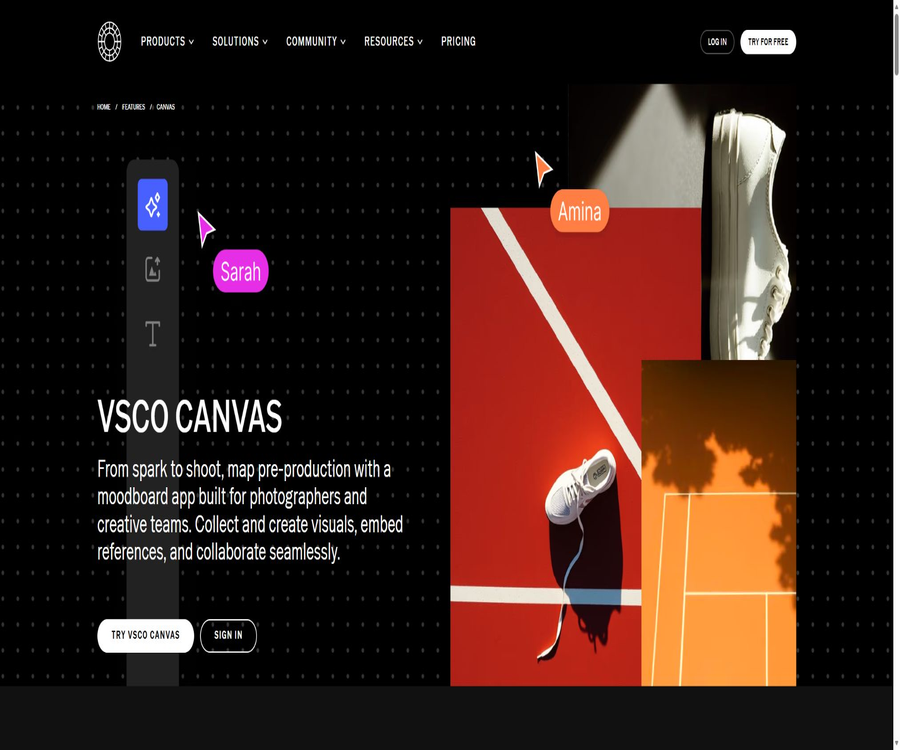
VSCO Canvas is an AI-powered collaborative mood board developed by Visual Supply Company for photographers and visual teams. It helps users gather reference images, videos, web pages, locations, text, and AI-generated concepts ahead of shooting, in order to define a clear visual direction.
Canvas allows one to start with a blank canvas or use templates. Users can search through the vast number of images available in the VSCO community, upload their own materials, include external references, and invite clients or team members to view and comment on them.
Main functions
Blank mood boards and professional templates
Users can create a blank Canvas and arrange reference images, text, and other elements as they see fit; they can also start by using expert-designed templates. These templates are suitable for commercial photography, weddings, brand development, or editing projects, and they help to reduce the time required to set up a structure from scratch.
Search for VSCO visual assets
Canvas offers VSCO image search, allowing users to find references in the vast number of works available in the community regarding composition, color, lighting, and style. The search results can be added to a mood board, but the works of others are still protected by their respective creators’ rights; adding them to Canvas does not automatically grant commercial usage rights.
Upload and embed reference content
- Upload your own photos to illustrate the scene, clothing, products, or existing visual assets.
- Embed videos, web pages, and map locations to consolidate scattered references into one project.
- Add text boxes to label colors, lenses, props, timing, or customer feedback.
- Adjust the position of elements by dragging and dropping to establish a visual hierarchy from the overall composition to individual shots.
Reference image for text generation AI
Canvas can create images from scratch based on textual instructions, allowing users to explore different sets, lighting conditions, styles, or compositions that have not yet been photographed. The generation panel shows the remaining quota; each new creation, re-generation, or variation consumes a portion of this quota.
Local hints for modification
Region Prompt allows users to select specific areas in the image to be generated, and then to describe in text what changes are desired. It is suitable for adjusting individual elements such as props, backgrounds, or colors, but it currently does not enable generative modifications to images imported by the user.
Redraw and similar variants
Reroll generates another image using the current prompt. Add Variation creates three similar images at once, allowing you to choose between very similar images, those with moderate differences, or significantly different ones – which is useful for quickly comparing various visual options.
Basic image editing
Users can edit and create images as well as import them; the tool available currently handles aspects such as lighting, color, white balance, shadows, highlights, grain, blur, and cropping. It is suitable for unifying the appearance of a mood board, but it is not a full-fledged RAW processing or professional pixel-level image editing software.
| Edit group | Adjustable items | Primary uses |
|---|---|---|
| Light and contrast | Brightness, exposure, contrast, clarity | Unify the lighting and depth levels in the image. |
| Colors and white balance | Color temperature, hue, saturation, natural saturation, color phase | Test the color direction of shooting |
| Highlights and shadows | Highlights, shadows, white levels, black levels | Observe the range of light and dark areas as well as the atmosphere. |
| Effect | Particles, blur, swelling | The style is for reference only and not the final version. |
| Cutting | Template ratios and free customization | Uniform composition and layout |
Comments and multi-person collaboration
Collaborators can leave comments at specific locations on the canvas, so that the feedback is associated with a particular image or area. The project owner can invite viewers or editors, and can also adjust or remove access rights at any time.
Share and Export
Canvas supports two ways of sharing: limited invitations and access for anyone who has the link. Users can also choose one or more images to export in PNG or JPEG format; however, what is exported are just the selected images, not the complete, editable project file.
Complete workflow
- Define the shooting objectives, target audience, delivery format, and the non-negotiable brand requirements.
- Create a blank Canvas or select an appropriate template, and name the project.
- Search for VSCO works, upload your own images, and embed them in videos, web pages, or location references.
- Use AI prompts to generate visual concepts that do not yet exist, and then refine these concepts through variations and partial prompts.
- Use basic editing tools to unify the color tone, and add text annotations for the shots, props, and production requirements.
- Invite customers or the team to provide feedback; once the direction is confirmed, export the reference image and retain the final version.
Usage tutorial
Create the first mood board
- Log in to your VSCO account, go to Canvas, and click on Create New Project.
- Choose a blank canvas or an expert template, and enter a name that clearly identifies the project.
- First, add three to five key reference images to determine the overall color scheme and composition approach.
- Add supplementary elements, text, and locations, so that the mood board is not overwhelmed by irrelevant images.
- When a new concept is needed, add a generation box and enter details regarding the subject, lighting, lens, and style.
- Once completed, invite collaborators or export the image, and convert the determined direction into a shooting checklist.
Use AI to generate and modify reference images.
- Add an image generation box to the left toolbar and place it at the desired position on the canvas.
- Enter a specific description that includes at least the subject, environment, lighting, colors, and the intended composition.
- After generation, the overall direction is first checked; if it is indicated as correct but the result happens to be poor, re-drawing can be used.
- When comparison is needed, create three variants and select a similarity range.
- Use the Region Prompt box to select only the area that needs to be modified, thereby avoiding the need to redo the entire image.
- Record the remaining generation quota, reserving high-cost attempts for the most critical visual decisions.
Invite clients and the team
- Click Share, enter the collaborator’s email address, and choose either viewer or editor permissions.
- Collaborators who need to make edits are asked to open the invitation using a VSCO account.
- Ask the person providing feedback to place their comments next to the corresponding element, and to explain the reasons for agreeing or disagreeing.
- Any feature that requires public display is enabled only in such cases; those linked to it can view it, while sensitive items remain accessible only to authorized users.
- After the project is completed, remove any unnecessary editing permissions and export the finally approved materials.
Which users are it suitable for
- Photographer: Before shooting, arrange the composition, lighting, colors, clothing, and choose the appropriate location.
- Photography and art direction: Consolidate the visual concept into commentable, iterative mood boards.
- Brand and marketing team: Aligning advertising, social media content, or event visuals with photographers and clients.
- Stylists and art teams: They are responsible for planning the clothing, props, materials, and overall layout of the scenes.
- Wedding and event team: Show clients the desired atmosphere, color palette, and camera setup.
- Students and creative learners: Take advantage of a one-time, free quota to learn visual research and mood board techniques.
Typical use cases
- Determine the background, lighting, clothing, and color combination for commercial portrait photography.
- Create conceptual reference images that have not been photographed yet before submitting the client proposal, and indicate the conditions required for their realization.
- Establish a unified visual direction for the brand’s quarterly content, in order to reduce discrepancies in how different teams interpret the descriptions.
- Bring together the site map, reference videos, images, and camera instructions on a single shareable canvas.
- Allow customers to leave comments next to the specific images, so as to prevent feedback from being scattered across emails and chat records.
- Compare multiple similar options before starting the actual production, in order to reduce the need for repeated attempts and corrections on set.
Product advantages
- Designed for photography workflows: mood boards, VSCO assets, basic color correction, and shooting collaboration are all integrated closely together.
- A wide range of reference types: images, videos, web pages, maps, and text can all appear on the same canvas.
- AI is used for the initial conceptualization: it enables creation from scratch, provides partial prompts, and offers variations to help explore different visual directions.
- Clear permissions: It allows for a distinction between viewers and editors, and supports restricted or public links.
- Free accounts come with a one-time credit of 100 units and 1 project, which can be used to test workflows.
- Pro and One offer 50 projects along with a quota of 500 per month, suitable for ongoing customer projects.
- It can be accessed from both desktops and mobile devices, and it can also be viewed while on site for inspections or when communicating with clients.
Usage restrictions and precautions
- Facet 2.0 is no longer a standalone product; the old tutorials, prices, account access options, and feature descriptions may all be invalid.
- Current generative AI can only create images from scratch; it is not capable of modifying images that have been imported by the user using generative techniques.
- The free quota is 100 points per use, and it is not replenished on a monthly basis once it has been used up.
- The monthly quotas for Plus, Pro, and One are reset, and unused points cannot be carried over.
- Plus comes with only 1 individual project; multiple concurrent client projects usually require Pro or One.
- Importing images directly from a VSCO profile is not yet supported; other methods of uploading or searching are required.
- AI-generated images may contain structural errors, stereotypical biases, and similar outputs; they should not be regarded as actual photographic results.
- Anyone who has the link can view it, which expands the reach of access; confidential customer information should be shared on a restricted basis.
- Adding to others’ VSCO posts is for reference only and does not grant permission for copying, adapting, or commercial use.
- The VSCO terms permit the use of content to develop, train, and improve AI models within certain limits; sensitive projects require an assessment of the licensing and privacy implications first.
Prices and packages
The following are the prices for website memberships in the United States as of August 22, 2026. App stores, regional taxes, and promotions may vary; the final amount will be indicated on the purchase page.
| Package | Price | Canvas project | Generate quota | Suitable for users |
|---|---|---|---|---|
| Starter | Free | 1 | 100 points at a time | Experience Canvas and basic VSCO editing features. |
| Plus | $ | 1 | 250 points per month | Edited mainly on mobile phones, with only one mood board maintained. |
| Pro | $ | 50 | 500 points per month | Professional photographers and multiple client projects |
| VSCO One | $ | 50 | 500 points per month | Photography business management, delivery, and team processes are required. |
Trial and quota rules
- Plus and Pro usually offer a 7-day free trial; if it is not canceled before the end of the trial period, the subscription will start.
- The Plus trial offers 125 points, while the Pro trial provides 250 points.
- The 100 points available for the Starter plan are a one-time allowance; once it is used up, an upgrade is required.
- Plus earns 250 points per month, while Pro and One earn 500 points per month; none of these points are carried over to the following month.
- VSCO One is an annual-only subscription plan that offers a 30-day cancellation period; downloading certain Film presets may end this period.
- The subscription must be canceled on the platform where it was purchased; deleting the VSCO account does not automatically cancel the subscription.
Supported platforms and formats
| Project | Support status | Explanation |
|---|---|---|
| Desktop Web | Support | Officials recommend using Chrome for a complete experience in creation and editing. |
| Mobile browser | Support | Both iOS and Android allow direct access to Canvas. |
| VSCO iOS app | Support entry point | After a new mood board is created within the app, it will open in the default mobile browser. |
| VSCO Android app | No description available for equivalent application entry points. | It can be accessed using an Android browser. |
| Import image | Support | Imported images can be edited, but they cannot be modified using generative AI. |
| Image export | PNG, JPEG | You can choose to download one or more images. |
| External reference | Videos, web pages, map locations | Used to consolidate visual materials |
| Complete project file | No standard editable format is provided. | Collaboration is mainly carried out through VSCO accounts and links. |
Copyright, AI content, and privacy
The VSCO terms state that users own the Creator Content they publish, and they have rights over the AI suggestions and outputs within the limits permitted by law. However, the AI-generated results may not be unique, and they may not be eligible for copyright protection; therefore, users must ensure that the suggestions, inputs, and outputs used are legal.
When using the service, users grant VSCO a global, non-exclusive, sublicensable, permanent, and irrevocable license to use their content. This license allows for the development, training, and improvement of AI or machine learning models within the framework set out by the Creator Content Standards.
- Do not upload photos of customers for whom you do not have permission, unpublished ad materials, or images covered by confidentiality agreements.
- Before inviting collaborators, confirm their roles; use restricted links for the sensitive emotion board.
- Public links can be forwarded, and it is not possible to rely on the difficulty of guessing such links to protect trade secrets.
- If the generated content is to be used in commercial projects, it is necessary to check the rights related to characters, brands, buildings, artistic styles, and materials.
- Mark content generated or modified by AI in accordance with applicable laws or customer requirements.
- Important references can be saved locally and exported in the end; the platform does not guarantee permanent storage of all content.
APIs, GitHub, and open source status
VSCO Canvas does not provide any public APIs, SDKs, or documentation for automated integration intended for developers. The communication that takes place within the website cannot be considered an interface that third parties can use reliably, and bulk data extraction or attempts to bypass access restrictions may also violate the terms of service.
No Canvas or the original Facet 2.0 open-source repository, as confirmed by Visual Supply Company, was found. The projects on GitHub with names such as VSCO, Facet, or VSCO API are either belonging to organizations with the same name or are third-party tools; therefore, these projects cannot be considered open source.
Basic information
| Project | Content |
|---|---|
| Historical name | Facet 2.0 |
| Current products | VSCO Canvas |
| Development company | Visual Supply Company |
| Tool type | AI mood boards, photography planning, and visual collaboration |
| Core input | Prompts, images, videos, web pages, locations, and text |
| Core output | Share mood boards, AI reference images, PNG or JPEG photos |
| Price pattern | Free quota and VSCO membership subscription |
| Is registration required? | Creating and editing requires a VSCO account. |
| Chinese support | The interface and documentation are primarily in English; prompts can be tried in Chinese. |
| APIs and SDKs | Not disclosed |
| Is it open source? | No |
| Main platforms | Access to desktop Web, mobile Web, and iOS apps |
Recommendation score
Recommendation score: 4.2 / 5. VSCO Canvas combines photography references, AI concept images, basic color adjustment tools, comments regarding specific locations, and options for sharing permissions within the same interface, which is very useful for the preparation phase of shooting as well as for communicating with clients.
The main shortcomings are that the older Facet versions are no longer available, the imported images cannot be modified, there are few free and Plus plan options, and the terms related to content licensing and AI training need to be carefully evaluated. It is better suited as a tool for initial visual decision-making rather than as a software for final image editing.
Frequently Asked Questions
Can Facet 2.0 still be used?
The original Facet 2.0 is no longer operated as a standalone service; its related technologies and team achievements have been integrated into the VSCO ecosystem, so VSCO Canvas should be used now.
What is VSCO Canvas used for?
It is used to create mood boards for photographic and visual projects, allowing for the collection of references, the generation of AI concept art, image editing, collaborative commenting, and the export of selected images.
Is VSCO Canvas free?
The free Starter account includes 1 personal project and 100 credits that can be used once. Once these credits are used up, they are not renewed on a monthly basis; it is necessary to upgrade to Plus, Pro, or One.
What is the difference between Plus and Pro?
Plus generates 250 points per month, allowing for only 1 personal project; Pro offers 500 points per month and supports up to 50 projects. Pro also includes more advanced desktop editing tools, an AI Lab, a gallery, and portfolio features.
Can unused points be carried over?
No. The points earned in the Plus, Pro, and One tiers are reset each month, and any unused points are not carried over to the following month.
Can I edit the pictures I upload?
It can be edited using standard tools such as exposure, color, shadows, grain, blur, and cropping. At present, generative AI cannot be used on imported images; new images can only be created from scratch.
Can multiple people work together?
Yes. The owner can invite viewers or editors to discuss specific elements through comments, and editors need a VSCO account.
Can anyone view the sharing link?
It depends on the settings. In restricted mode, access is available only to those who have been invited, while in the public mode anyone with the link can view it; sensitive items should be set to restricted mode.
Can it be imported directly from a VSCO profile?
The current help documentation states that direct import from VSCO Profiles to Canvas is not supported; images can be added either by searching or by uploading them.
Which export formats are supported?
Currently, PNG and JPEG are supported; it is possible to export one or more images. There is no standard, fully editable Canvas project format available.
Can AI-generated images be used for commercial purposes?
Users are allowed to possess AI-generated content within the limits permitted by law, but the results may not be unique and may not be covered by copyright protection. Before using such content for commercial purposes, it is necessary to check the rights of any third parties involved in the associated text or images, as well as to comply with any disclosure requirements.
Will the content be used to train AI?
The platform license granted under the VSCO terms includes the right to develop, train, and improve AI models in accordance with specific standards. Users who are concerned about sensitive customer data should first review the latest terms and restrict uploads.
Are APIs or open-source code available?
There are no public Canvas APIs, SDKs, or official open-source repositories available. Both Facet 2.0 and VSCO Canvas should be considered commercial, closed-source products.
Summary
The independent product phase of Facet 2.0 has come to an end; the current version available is VSCO Canvas. This version focuses more on creating mood boards, gathering references, generating AI concepts, and facilitating collaboration with clients during the pre-photography stage.
New users can use the Starter plan, which provides 100 credits for a one-time verification process; those who manage only one project may opt for the Plus plan, while those dealing with multiple clients should choose the Pro plan. For actual projects, it is also necessary to control sharing permissions, verify the rights to the used materials, and be aware of VSCO’s content licensing terms.
Tools similar to Facet 2.0


 Guigong Network Security Registration No. 45132202000164