






ExtendImage
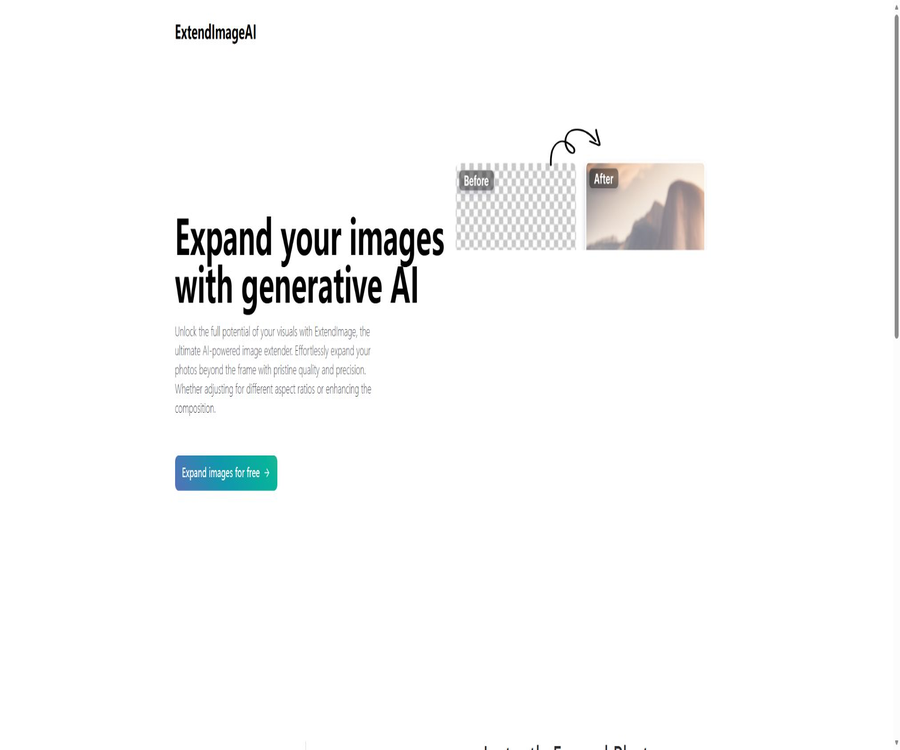
ExtendImage: a smart tool specialized in AI-driven image processing.
Tags:Common AI image toolsA one-sentence summary
ExtendImage AI is an online generative tool for expanding images; it allows photos or design drafts to be extended beyond their edges, with new backgrounds and objects added. It can also convert vertical images into horizontal ones, horizontal images into square ones, or expand images in any desired area.
Tool Introduction
ExtendImage is also often written as ExtendImage.AI; its main function is AI Outpainting, which involves creating new content outside the frame of the original image while preserving it. It is useful for fixing images with too tight compositions, adding space for titles, adapting images to social media standards, or expanding the background of posters.
The current products are primarily web-based editors: users upload images or provide their URLs, choose the format in which the images should be generated, enter any optional instructions, and specify the number of images desired. The platform then returns several possible results, and the user must manually select the most natural-looking image.
The difference between AI-based image expansion and regular scaling
| Handling method | Changes made | Suitable for tasks | Main risks |
|---|---|---|---|
| AI image expansion | Generate new scenes outside the boundaries of the original image. | Adjust proportions, add background, increase whitespace, and fix cropping. | Details that do not conform to the logic of the original image may be generated. |
| Normal scaling | Scale all pixels as a whole, either up or down. | Change the output size | Zooming in may cause blurriness and does not enhance the scene. |
| AI super-resolution | Details and clarity of reconstructing existing areas | Increase the resolution of smaller images. | It may change the texture and facial details. |
| Traditional generative filling | Delete, replace, or add content in the selected area | Local repair and object replacement | Seams may appear where the edges are joined. |
| Crop | Remove the edge content to achieve the desired ratio. | Rapid layout adaptation | The original image will be lost. |
Main functions
1. Expand content beyond the screen area
Users can expand the canvas on which the original image is located, allowing the AI to generate additional background elements, surroundings, and other visual components based on the edge pixels. The goal is not simply to stretch the original image, but rather to create new areas that match the existing colors, lighting, and style.
2. Square, horizontal, and vertical layouts
The editor offers preset orientations such as square, Portrait, and Landscape, which are useful for converting original photos into different compositions. Once the aspect ratio is selected, the original image is placed on the new canvas, with the remaining space filled in by AI.
| Expansion method | Composition features | Common uses |
|---|---|---|
| Square, rectangular shape | The width and height are roughly the same. | Profile picture background, product thumbnail, social media posts |
| Portrait vertical | The height of the image is greater than its width. | Story cover, vertical poster, mobile content |
| Landscape horizontal | The width of the image is greater than its height. | Banners, article thumbnails, presentation covers |
| Freeform free area | Select the expansion location and scope as needed. | Leave space for the title; add background only on one side or use a partial composition. |
3. Expansion of free zones
The official website states that it is possible to choose freely which area to focus on. This approach is more suitable than using a fixed ratio, as it allows for adding space only on the left, right, top, or bottom, thereby avoiding the creation of unnecessary large areas of content.
4. Optional English prompts
The Prompt field is not mandatory; users can describe in English what they want the AI to generate. The prompt helps to specify details such as the scene, materials, lighting, and elements that should not be altered, but it cannot guarantee that the output will adhere strictly to these specifications.
- Describe the environment in which it should continue to appear, such as a beach, forest, sky, or indoor wall.
- Explain the purpose of the image, such as providing a simple background for the title on the left.
- Add lighting, season, lens, or painting style to make the new area more similar to the original image.
- Avoid adding elements that conflict with the main subject of the original image, in order to reduce sudden changes in style and perspective.
- The current editor explicitly suggests using English for descriptions; there is no official guarantee regarding the effectiveness of using Chinese.
5. Generate multiple candidate results at once
The Amount option allows the creation of 1, 2, 3, or 4 images at a time. Generating multiple images makes it possible to compare compositions and details, but it also increases the amount of points spent and the waiting time required.
6. Public and private images
The editor offers Public and Private privacy options. The public mode is the default choice, while private images require a Pro subscription; therefore, generating content for free should not be considered to imply complete privacy.
If an image contains unreleased products, customer materials, or personal information, do not rely solely on the dropdown options to determine its safety; it is also necessary to check whether the account plan, data policies, and organizational rules allow uploading to external AI services.
7. Upload a file or use a image URL
Users can upload files from their devices, or they can use an Image URL to provide images from the internet. Before using an external image, it is necessary to ensure that the address is publicly accessible and that the user has the authority to use that image.
8. Personal photo collection
The editor includes a \"My collection\" section where you can view the images that have been generated in your account. The guidelines do not specify whether these images should be retained permanently, for how long, or what should happen to them once they are deleted; therefore, it is important to download backups of the important results promptly.
Input and output
| Project | Currently supported | Restrictions and recommendations |
|---|---|---|
| Upload format | PNG, JPG, JPEG | Although the editor calls the image selector, the official documentation only lists these three categories. |
| File size | Up to 4MB | Images that are too large need to be compressed locally first. |
| Image URL | Support | The address must be accessible, and attention should be paid to copyright and privacy issues. |
| Prompt | Optional English text | Describe it using brief, specific scenarios and composition requirements. |
| Expansion direction | Square, vertical, horizontal, and free selection | The final canvas size depends on the editor settings. |
| Number of items generated | 1 to 4 cards per time | The greater the quantity, the more points are usually consumed. |
| Privacy options | Public or Private | Private needs Pro. |
| Output | Image candidates after AI completion | The public page does not specify a fixed resolution or file format. |
Usage tutorial
Basic image expansion process
- Prepare an image with clean edges, a clear subject, and no frames or large sections of text.
- In the editor, select \"Upload file\" to upload, or switch to \"Image URL\" and provide an image for which you have permission to use.
- Select square, vertical, horizontal, or free area to determine the location where you want to add the canvas.
- Fill in the English prompts as needed to describe the background, lighting, style, and the elements that need to be preserved.
- Choose to generate 1 to 4 candidate results, and decide whether to use the Public mode or a qualified Private mode.
- After submission and generation, compare the seams, perspective, lighting, as well as the details of characters and text.
- Choose the more natural-looking result for downloading, and then use image editing software to make cuts and perform local repairs.
Leave a title area for the banner.
- First, determine whether the title should be placed on the left or right side, while preserving the area where the main image is located.
- Use horizontal or free-area expansion to add sufficient canvas only on one side of the title.
- The prompt requests a background that is concise, has few details, and matches the lighting of the original image.
- Multiple candidates are generated at once, with priority given to those that have intact spacing and no additional elements.
- Download it first and then add actual text; do not let the AI generate brand names or long titles directly.
- Tests are conducted separately on desktop and mobile devices to ensure that the main content or text is not obscured by the platform.
Repair cropped photos
- Determine whether what is missing is the background or complex structural elements such as figures, hands, and clothing.
- Start by using a smaller expansion range to avoid generating too many uncontrollable details at once.
- The prompt should only describe known facts; no new plot elements that contradict the original image should be included.
- Zoom in to examine fingers, eyes, jewelry, straight lines, and repetitive patterns.
- If necessary, expand in two stages in different directions and combine them in a professional editor.
- When it comes to evidence, news, or archival photos, do not treat the AI-generated additions as genuine content.
Methods to improve the quality of enlarged images
- Give priority to original images with continuous edges, clear lighting, and subjects that are not tightly framed.
- Start by expanding a smaller area; once the style is confirmed, proceed with further expansion. This approach is usually more stable than trying to increase the canvas size drastically at once.
- The prompt describes the new area instead of repeating the entire original image, thereby reducing the need to redraw the main elements.
- Figures, text, architectural lines, and regular patterns are common challenges that require closer inspection.
- When multiple versions are generated at once, the seams, perspective, lighting, and semantic consistency are compared separately.
- Before final release, manual photo editing, color matching, and cropping to the desired size are carried out.
Which users are it suitable for
- Social media manager: Adapt the same content for square, vertical, and horizontal covers.
- Graphic designer: Adds spacing around titles, logos, or buttons, and uses the resulting design as a draft for further editing.
- E-commerce sellers: Expand the product details, but make sure that AI does not alter the actual appearance of the product.
- Photographer: Used to correct overly tight cropping or explore new aspect ratios; not suitable as a replacement for the original photo.
- Content creators: Create article thumbnails, video covers, posters, and images for slideshows.
- Marketing team: Transform existing visual materials into advertisement banners or background images for landing pages.
- Concept designer: Expands the scene from a partial view to quickly compare different composition options.
- Regular users: Add a background or change the proportions for avatars, wallpapers, and personal photos.
Typical use cases
- Expand a vertical portrait photo into a horizontal video thumbnail, reserving space on one side for the title.
- Extend the background of the product image to form a banner for the e-commerce promotion, while keeping the main part of the product unchanged.
- Change horizontal landscapes to square social media posts to minimize losses caused by direct cropping.
- Complete the sky, ground, walls, or other elements of the environment that are missing at the edges of the photo.
- Expand illustrations, game scenes, and concept art to provide composition drafts for subsequent design work.
- Add clean visual space to the presentation cover and article thumbnail.
- Generate multiple background variants to determine which one is more suitable for marketing layouts.
- Extend textures or abstract backgrounds for use as decorations on posters, social media content, and web pages.
Product advantages
- Its functions are focused on AI-based image enlargement, and its interface is easier to use compared to full-featured image editors.
- It supports two ways of input: file upload and image URLs.
- It offers square, horizontal, vertical, and free-form areas to meet common composition needs.
- Prompt options are available, so users who are not familiar with prompt engineering can still try it out directly.
- Up to 4 candidate versions can be generated at a time, making it easier to select the most natural one.
- It is possible to create privacy by distinguishing between Public and Pro private modes.
- No need to install large software on the web version; it is suitable for temporarily processing individual files.
- The target use cases presented on the official website are clear, including advertising, posters, infographics, and social media.
Usage restrictions and precautions
- The maximum size for uploaded files is 4MB, so it is not suitable for processing large original photo files directly.
- The editor only lists PNG, JPG, and JPEG explicitly; other formats need to be converted first.
- The prompt interface requires English; there is no official information regarding the level of support for Chinese descriptions.
- AI may generate distorted figures, repeated objects, incorrect text, broken lines, and unreasonable perspective.
- Generative image expansion does not restore the truly lost content; it only creates new pixels that may appear visually reasonable.
- In the free mode, images can be set to Public; sensitive, confidential, and unreleased materials should not be uploaded.
- Private generation requires Pro; there are no reliable public details available regarding the subscription costs or the amount of points allocated.
- Generating more versions at once increases the amount of points consumed; the public page does not specify a fixed cost per version.
- There are no public commitments regarding a fixed output resolution, watermark-free content, batch processing, or commercial licensing.
- There is no mature public help center, terms of service, or privacy policy available for users to review in detail.
- When real products, evidence, news, and photos of people are involved, it is necessary to indicate or keep a record of any AI modifications made.
- The platform may adjust the free quota, models, output quality, and payment rules at any time.
Prices, Points & Pro
ExtendImage offers a free starting option, as well as a system based on the use of points and a Pro subscription plan. The current public page does not display any fixed prices, subscription durations, number of point packages, or cost per generation in a clear manner; therefore, it is not appropriate to refer to quotes from third parties.
| Project | Current status | Rights and interests have been confirmed. | Still needs to be confirmed. |
|---|---|---|---|
| Free to use | You can start for free. | You can access the editor and try to resize the image. | Initial score, daily limit, and expiration rules |
| Integration | Generating it consumes points. | If the number of points is insufficient, you will be asked to purchase more points. | Validity period for each consumption, failed refund, and point. |
| Pro | Offer subscriptions | It is possible to create private images. | Price, cycle, renewal, full points, and other benefits |
| Public images | Free process available as an option | The generated results are processed in public mode. | Public scope, search visibility, and deletion mechanism |
| Private images | Pro exclusive | Control image privacy | Retention period and backend access scope |
| Bill management | Provides an online bill access portal | Logged-in users can access payment service management. | Refunds, cancellation deadlines, and taxes |
Before making a purchase, you should check on the subscription page after logging in the final amount, currency, auto-renewal settings, number of points, private benefits, and refund policies. It is not recommended to proceed with a payment based solely on the tool catalog or previous reviews if this information is not displayed.
Supported platforms
| Platform | Support status | Explanation |
|---|---|---|
| Web page version | Support | The main entry point for uploading, setting up expansion methods, as well as creating and viewing collections. |
| Windows | Supports browser access | No standalone desktop applications were found. |
| macOS | Supports browser access | No native client was found. |
| Linux | Supports browser access | There is no public installation package available. |
| iOS and Android | You can try moving the browser. | Image selection and fine-area adjustment are more suitable for larger screens. |
| Browser extensions | Not provided | No official extensions were found. |
| API | Not disclosed | There are no developer documentation, keys, or pricing information for calls. |
| Interface language | English | The prompt also explicitly requires the use of English. |
Privacy and data processing
The current site offers options for Public and Private modes of generation, but no comprehensive and public privacy policy, information on data retention periods, details regarding the use of data for training purposes, procedures for requesting data deletion, or information about subcontractors is available. The Private label alone cannot serve as a substitute for a privacy agreement.
- Free users should assume that uploaded images and generated results may be handled in a Public manner.
- Do not upload identification documents, medical records, contracts, customer lists, or other sensitive information.
- Do not upload images of products that have not yet been released, advertising campaigns, or materials subject to confidentiality agreements.
- Appropriate authorization is required for photographs of individuals, especially those of minors, customers, and employees.
- When using image addresses, do not provide addresses that contain temporary keys, account information, or internal storage paths.
- After completing the task, download the results promptly and check whether the My collection option allows for deletion.
- Before using it, the enterprise should request from the operator information regarding data processing, the providers of the models, as well as the procedures for retention and deletion.
Copyright and commercial usage notes
The public page does not provide clear enough information regarding commercial licensing and the rights to use the generated content. The ability to create and download images does not mean that one automatically has all commercial rights to them.
- Confirm that the original image was created by you, that you have purchased the necessary license, or that you have obtained permission from the rights holder.
- Do not ask AI to create variations of protected characters, logos, or to imitate the unique works of living artists.
- It is necessary to check the product images to determine whether AI has altered the color, structure, accessories, and actual specifications.
- Before publishing an advertisement, check whether the people, brands, buildings, and backgrounds involve any new rights issues.
- For important business projects, retain the original images, prompt words, date of creation, and records of any manual modifications.
- When the platform does not provide explicit authorization, consult the operator regarding the scope of commercial use, resale, and delivery to customers.
APIs, GitHub, and open source status
ExtendImage does not provide any public developer APIs, SDKs, authentication methods, rate limits, or pricing information. The interfaces that are generated within the website are part of the product’s implementation and cannot be used as stable public interfaces.
As of the time of verification, no GitHub repository maintained by ExtendImage’s official team or any open-source license could be found. The image extension projects with similar names that were discovered have no official connection to this commercial website.
| Project | Current situation | Explanation |
|---|---|---|
| Public API | Not provided | There are no public API documentation or key console. |
| Official SDK | Not provided | No Python, JavaScript, or other language packages were found. |
| Official GitHub | No findings were detected. | There is no official code organization confirmed on the brand’s page. |
| Open-source product | No | Unpublished product source code and open-source licenses |
| Self-hosting | Not provided | Only online web services can be used. |
| Batch API | Not provided | The editor generates 1 to 4 images each time. |
Differences from a full-featured AI image editor
| Ability | ExtendImage | Comprehensive AI image editing platform |
|---|---|---|
| Core tasks | Expand beyond the image boundaries | Generation, image enlargement, masking, replacement, restoration, upscaling, etc. |
| Canvas control | Common ratios and free area | Multiple layers, masks, brushes, and precise dimensions |
| Batch processing | Not disclosed | Some platforms support queues and batch templates. |
| History and Projects | My collection | It usually provides project, version, and team resources. |
| Privacy | Public and Pro Private | Enterprise-grade solutions typically offer contract and data control. |
| Developer integration | There is no public API. | Some platforms offer APIs and SDKs. |
| Applicable complexity | Quick processing of individual image enlargements | Complete design, photo editing, and team production process |
Basic information
| Project | Content |
|---|---|
| Tool name | ExtendImage |
| Page brand | ExtendImage.AI |
| Tool type | AI image expansion and generative completion tools |
| Main inputs | Image files, image URLs, and optional English prompts |
| Supported formats | PNG, JPG, JPEG |
| Maximum file size | 4MB |
| Single quantity | 1 to 4 pieces |
| Privacy options | Public and Pro Private |
| Price pattern | Start for free, with points and Pro subscription |
| Is registration required? | Generation requires login for account functions. |
| Chinese support | Not provided; the prompt requires English. |
| APIs and SDKs | Not disclosed |
| Is it open source? | No |
| Main platforms | Web page version |
Recommendation score
Recommendation score: 3.5 / 5. ExtendImage offers convenient functions for working with individual images, including easy uploading, control over aspect ratios, a free editing area, prompt options, a choice of available candidates, and privacy settings; it is suitable for quickly creating drafts of content for social media or marketing purposes.
The main shortcomings are the 4MB limit, English-only prompts, opaque pricing and point systems, as well as the lack of comprehensive privacy policies, terms of service, API access, and development documentation. Non-sensitive images can be used for trial purposes on a limited scale; for commercial and confidential projects, it is better to choose platforms with clearer licensing and data policies.
Frequently Asked Questions
What does ExtendImage AI do?
It uses generative AI to add new content beyond the edges of an image, making it suitable for changing the aspect ratio, fixing overly tight compositions, and adding background space to a design. It does not simply enlarge the pixels.
Is ExtendImage free?
The official website allows users to start for free, but the specific amount of free points available and the number of times they can be generated are not disclosed. When the points run out, it is necessary to purchase more points or upgrade.
How much is Pro?
The current public page does not specify a fixed amount, currency, or frequency that can be reliably confirmed. It is necessary to check the final price and benefits in the subscription section after logging in before making a purchase.
Are the images generated for free private?
It shouldn’t be understood in that way. The editor offers Public and Private as default options, and Private requires a Pro subscription; therefore, free users should not upload sensitive or confidential images.
Which image formats and sizes are supported?
The editor explicitly lists PNG, JPG, and JPEG; the maximum size for a single file is 4MB. Other formats or larger images need to be converted and compressed in advance.
How many can be generated at once?
For the Amount, you can choose 1, 2, 3, or 4 items. The higher the number of items generated, the more points are usually required.
Do the prompts have to be in English?
The editor requires that a description of the image desired to be created be provided in English. It is possible to expand the image without entering any prompts, but no official guarantees are provided for results when using Chinese input.
Can the vertical chart be changed to a horizontal one?
Yes. Once the Landscape layout is selected, the system will expand the horizontal canvas and add new content; the user still needs to check the seams on the sides as well as the overall structure.
Can it restore the actual missing content in photos?
It’s not possible. AI can only generate content that seems reasonable based on the original image; it has no knowledge of what actually exists in the areas that have been removed, so it cannot be used to restore evidence or the facts contained in documents.
Can the generated images be used for commercial purposes?
The public page does not provide clear enough information regarding commercial licensing. Before using the content for commercial purposes, it is necessary to verify the rights to the original images, the platform’s terms of service, as well as any licenses related to characters and brands; moreover, the AI-generated content must be manually reviewed.
Are APIs provided?
There are no public APIs or SDKs. For the requests made within the website, there are no developer documentation, authentication mechanisms, pricing information, or service guarantees, which makes it unsuitable for formal integration.
Is ExtendImage open source?
It is not open source; no officially recognized GitHub repository or open source license has been found.
How to reduce seams in enlarged images?
Choose an original image with smooth edges, no frame around it, and no large sections of text. First expand a small area of the image and use descriptive phrases to indicate the lighting and background. After generation, it is still necessary to zoom in for inspection and make minor adjustments to the image.
Summary
ExtendImage is a lightweight web tool focused on AI Outpainting; it allows for quick addition of backgrounds, adjustment of proportions, and expansion of the composition area. Its preset directions, free editing zones, and multiple generation options are very useful for creating drafts for social media posts and marketing materials.
However, the free quota, Pro pricing, data processing, and commercial licensing are not transparent enough. The safest approach is to upload only non-sensitive images that can be processed, to use the resulting outputs as drafts for creative work, and to carry out manual editing and copyright checks before publishing them.
Tools similar to ExtendImage



 Guigong Network Security Registration No. 45132202000164