





Artroom
Artroom, an intelligent tool focused on AI-generated images
Tags:Common AI image toolsWhat is Artroom AI?
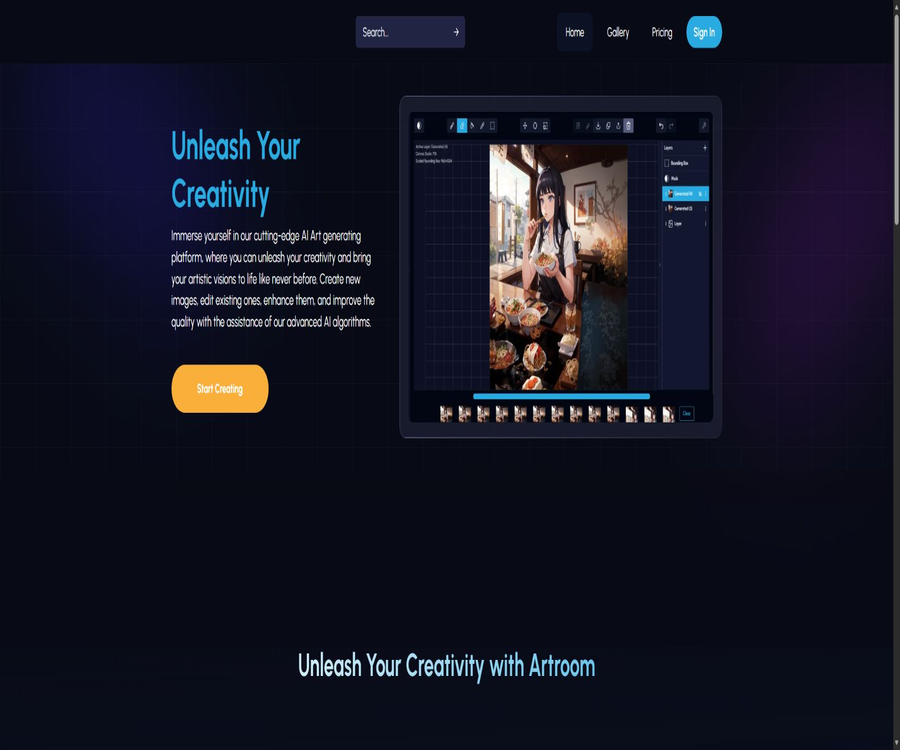
Artroom AI is an AI-based image generation and editing platform built around Stable Diffusion; it allows for creating images in the cloud, adjusting model parameters, combining LoRA models, and using ControlNet to control the composition of images.
It offers a community gallery, creator profiles, and public GitHub projects, aimed at AI art users who wish to have more control over the results generated compared to ordinary text-based image creation methods.
Core functions
Text to image generation
- Describe the subject and scene through positive cues.
- Use negative cues to eliminate unwanted elements.
- Select different Stable Diffusion models
- Set dimensions, steps, sampler, and CFG
- Fix the Seed to reproduce a similar composition.
- Generate higher-resolution results in the premium package.
LoRA character and style combinations
The platform is connected to CivitAI’s content ecosystem, allowing users to combine different characters, costumes, and painting styles via LoRA in the same generation task.
- Browse the LoRAs that are authorized for use in generating services.
- Combine multiple characters or styles
- Adjust the influence weights of each LoRA
- Check the hints and parameters in the community images.
- Contact the team for recommended or managed models
ControlNet
ControlNet allows you to upload an initial image and retain its pose, edges, depth, or certain structural elements, thereby enhancing the consistency of the composition.
Image editing and enhancement
- Edit existing images
- Improve clarity and output size
- Remove the background from the image
- Regenerate the local area.
- Continue the style and structure from the reference diagram.
- Save the results to your personal storage space
Community Gallery
In the public gallery, you can view the images, prompt phrases, and generation settings of other users; after logging in, you can access additional information regarding models and parameters.
What use cases are suitable?
- Create character concept art and illustrations.
- Create visual assets for board games and RPGs
- Explore illustration, anime, and realistic styles
- Use ControlNet to maintain the character’s posture.
- Generate reference photos for design projects
- Reuse characters or art styles through LoRA
- Learn the generation parameters of Stable Diffusion
- Display and share the creation process in the community
Main advantages
- Free Shard that is refreshed daily
- Cloud GPUs lower the requirements for local hardware.
- Supports ControlNet and infinite LoRA
- Advanced parameters are more extensive than those of ordinary image generation tools.
- Public galleries facilitate learning about prompts and settings.
- Respect the service usage license granted by the model creator.
- The paid plans include queue-based generation and cloud storage.
- The official GitHub offers several relevant public projects.
Usage restrictions and precautions
- The free plan provides only 120 Shards per day.
- Shards of different models and sizes may consume different amounts.
- High resolution and batch generation will quickly consume the quota.
- The use of multiple LoRAs together can lead to visual conflicts.
- ControlNet requires appropriate reference images and weights.
- Errors in hand movements and text may still occur in the generated content.
- Public works can be viewed by other users and they can use the platform’s functions.
- Subscriptions are automatically renewed on a monthly basis.
- Payments that have already been made are generally not refundable, nor is a credit issued.
- NSFW real persons and illegal or harmful content are prohibited.
What is a Shard?
Shards are internal credits used within Artroom, and can be obtained through subscriptions, events, inviting friends, or engaging in interactions.
- Generating images consumes Shard.
- Different sizes and settings can affect consumption.
- The free quota is provided on a daily basis.
- The payment amount is issued on a monthly basis.
- The account page should display the remaining credit.
Package price
| Plan | Monthly fee | Shard quota | Maximum output | Storage |
|---|---|---|---|---|
| Free | $ | 120 per day | Same as the basic functions of Basic. | 100MB |
| Basic | 9 dollars | 10,000 per month | 1K,1024×1024 | 10GB |
| Pro | 29 dollars | 35,000 per month | 2K,2048×2048 | 30GB |
| Premium | 59 dollars | 80,000 per month | 4K,3840×3840 | 100GB |
Comparison of features across versions
| Functions | Free | Basic | Pro | Premium |
|---|---|---|---|---|
| Advanced GPU in the cloud | Basic experience | Support | Support | Support |
| Queue generation | According to the free rules | Support | Support | Support |
| ControlNet | Same functional description as Basic | Support | Support | Support |
| LoRA | Same functional description as Basic | No restrictions | No restrictions | No restrictions |
| Background removal | Same functional description as Basic | Support | Support | Support |
| Suitable for users | Experienceer | Low-frequency users | Moderate creators | High-frequency and business users |
Suggestions for package selection
- You can initially use Free to test prompts occasionally.
- A limited number of illustrations can be generated each month; the Basic option is available.
- 2K and higher amounts of experimental credits are required; Pro version is available.
- Premium is available for high-frequency commercial creation and 4K output.
- Record the actual amount of Shard usage generated before subscribing.
- Choose based on storage requirements rather than just the generation quota.
Generate tutorial for the first time
- Register an account and go to the image generation page.
- Select a base model that is close to the target style.
- Enter suggestions for subject, scene, lighting, and composition.
- Exclude ambiguous and distorted elements from the negative prompts.
- Start by using a resolution close to the model’s training size.
- Set moderate values for steps, CFG, and the sampler.
- Generate small batches of images and compare the results.
- The Seed that fixes the satisfactory image continues to iterate.
LoRA Usage Tutorial
- First, determine the goals for the characters, costumes, or art style.
- Select a LoRA that is compatible with the base model.
- View the trigger words and weights recommended by LoRA.
- Write the trigger words into the positive prompt.
- Start testing with a lower weight.
- Only one LoRA is added at a time to observe the changes.
- When a conflict occurs, reduce the weight or decrease the combination.
- Save the model, LoRA, and Seed parameters.
ControlNet tutorial
- Prepare reference images with clear composition or posture.
- Upload an image and select the type of structure you want to retain.
- Choose preprocessing methods such as edge detection, posture adjustment, or depth processing.
- Set the influence weight for ControlNet.
- Use prompts to describe new subjects and styles.
- First, generate tests at a lower resolution.
- Compare structural preservation with visual freedom.
- Generate a high-resolution version after adjusting the weights.
Output quality optimization
- Maintain a clear structure for the prompt.
- Select a model that matches the target style.
- Do not use too many conflicting LoRAs at the same time.
- Use Seed to ensure consistency across works in the same series.
- Fix the composition first, then zoom in.
- Zoom in to examine the face, hands, text, and edges.
- Manual post-processing is carried out before commercial release.
Content rights and community rules
The platform states that users own the images they create, but publicly available assets can be accessed by other users through the platform’s functions; commercial use still requires compliance with both the base model and LoRA licenses.
- NSFW images must not be posted in public galleries.
- It is not allowed to create pornographic content featuring real people.
- Illegal or harmful content may lead to suspension and reporting.
- The external licenses for the model and LoRA may restrict commercial use.
- It is necessary to obtain the appropriate rights before uploading reference images.
- Check privacy and consent before making works public.
GitHub and open source
The official GitHub repository of Artroom AI contains repositories for the client, local version, backend, and beta versions; a desktop version has also been released. However, it is necessary to check separately the licenses and compatibility of each of these repositories.
| Project type | Public status | Explanation |
|---|---|---|
| Artroom Cloud Platform | Commercial online services | Accounts, Shards, GPUs, and community features |
| artroomai | Public warehouse | Code related to the official client and its release |
| artroom-local | Public warehouse | Run related components locally |
| artroom-backend | Public warehouse | Some backend code |
| Models and LoRA | The licenses vary. | It does not become open source automatically just because the platform’s repository is made public. |
The catalog should not state simply that the entire product is fully open source; the accurate description is that there is an official public code repository, while cloud services and third-party models require separate assessment.
Basic information
| Project | Content |
|---|---|
| Tool name | Artroom AI |
| Tool type | Stable Diffusion AI painting and editing platform |
| Core functions | Text-to-image, LoRA, ControlNet, enhancement, and background removal |
| Primary users | AI artists, illustrators, game and content creators |
| Billing unit | Shards |
| Free quota | 120 Shards per day |
| Minimum payment amount | Basic costs $9 per month. |
| Supported platforms | Web and officially released desktop projects |
| Is registration required? | Yes |
| Is it open source? | The authorities provide public warehouses; cloud platforms are not equivalent to full open source. |
Recommendation score
The comprehensive recommendation score is 4.3 out of 5 points. Artroom AI is suitable for creators who need LoRA, ControlNet, and advanced Stable Diffusion parameters; the free tier makes it easy to conduct tests, and its various subscription options cater to different levels of usage, from low to high frequency.
Frequently Asked Questions
Is Artroom AI free?
The Free plan provides 120 Shards and 100MB of storage per day.
What is the use of Shard?
Shard is an internal quota generated by the platform; image creation and certain AI processes consume it.
Is ControlNet supported?
Supported; it is possible to retain poses, edges, depth, or other structures from the reference image.
Can LoRA be used?
Yes, the paid plan is labeled as unlimited LoRA, and the platform displays only those resources for which permission has been obtained from the creators.
To whom does the generated image belong?
The platform states that users own the content they generate, but they must still comply with the licensing terms of the base model and LoRA.
Can a subscription be refunded?
The terms state that the amount already paid is generally not refundable nor can a credit be issued; the subscription can be canceled to prevent further automatic renewals.
Can it generate NSFW content?
The platform may allow some private content, but it prohibits public NSFW material, pornography involving real people, as well as any illegal or harmful content.
Is Artroom AI open source?
The authorities have several public repositories, but cloud platforms, models, and services cannot all be considered fully open source.
What is the maximum size of image that can be outputted?
Premium is currently specified as having a maximum resolution of 4K, with dimensions of 3840×3840.
Tools similar to Artroom


 Guigong Network Security Registration No. 45132202000164