





Auto Draw
Auto Draw: an intelligent tool focused on AI-generated images
Tags:AI image illustration generationWhat is AutoDraw?
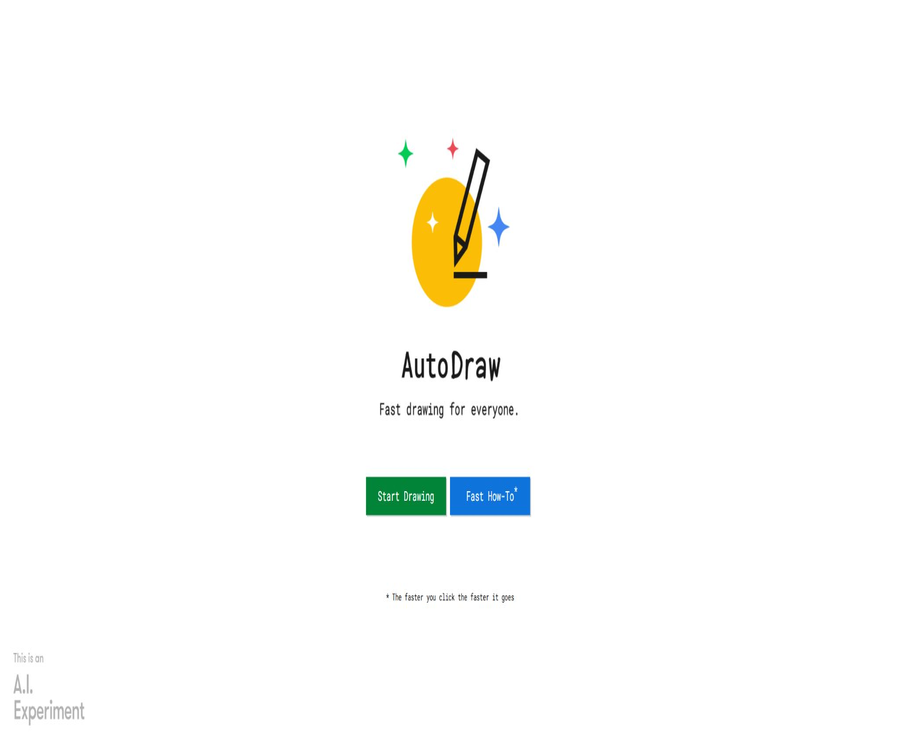
AutoDraw is a free web-based drawing tool developed by Google Creative Lab, which combines machine learning for recognition with icons created by professional artists. After the user draws a few strokes, the system guesses what the object is and provides a neater alternative design at the top.
It does not generate complex images from long prompts, nor does it convert sketches into photographs automatically. AutoDraw is more like a lightweight drawing board with intelligent suggestions, aimed at enabling those who cannot draw to create simple visual representations quickly.
Main functions
- Graffiti recognition: Analyzes the user’s current strokes to guess the object they might be trying to draw.
- Suggestion for the artist icon: Display original line patterns created by multiple people, corresponding to the graffiti.
- Free drawing: The regular brush is retained, allowing for direct creation of hand-drawn illustrations that do not require recognition.
- Select and move: Move, scale, and adjust patterns, text, or shapes within the canvas.
- Text tools: Add titles, labels, and brief descriptions to the canvas.
- Shape tool: Quickly create basic shapes such as circles, rectangles, and triangles.
- Coloring tool: Used to change the color inside an object or to add color blocks to the image.
- Zoom and Undo: Zoom in to see details, and undo or restore the most recent action.
- Sharing and Downloading: Generate sharing options or download the completed artwork as a PNG image.
How does AutoDraw recognize doodles?
The suggested features of AutoDraw make use of machine learning techniques related to the Quick, Draw! experiment; the model guesses what the user is drawing based on the shape and order of the strokes. The resulting images shown after a match are not generated by AI in real time, but rather are patterns pre-drawn by artists and designers.
| Processing stage | What does the system do? | What does the user see? |
|---|---|---|
| Enter strokes | Record the shape, position of the lines, and the drawing process | Rough sketches on the canvas |
| Object guessing | Compare the strokes with the common categories that have been learned. | Multiple possible objects appear at the top. |
| Icon matching | Search for artist patterns to guess categories. | Candidate icons in different styles |
| User selection | Replace the current doodle with the selected pattern. | Neater line illustrations |
| Continue editing | Treat the replacement pattern as a canvas object. | movable, scalable, and color-changeable |
What is the difference between it and generative AI art?
| Comparison items | AutoDraw | Generative AI image tools |
|---|---|---|
| Input method | Rough hand-drawn lines | Text prompts, reference images, or sketches |
| Output method | Match existing artist icons | The model generates new pixel images. |
| Appropriate content | Symbols, icons, and simple scenes | Photos, illustrations, and complex visuals |
| Speed | Typical immediate advice | It is necessary to wait for the model to perform inference. |
| Degree of controllability | Direct movement, scaling, and color change | Reliance on prompts, seeds, and editing tools |
| Usage cost | Free | Free quota, subscription, or pay-per-use |
| Main limitations | Only covered categories can be recognized and matched. | Hallucinations, as well as errors in text and details, may occur. |
How to use AutoDraw
- Open the AutoDraw board using a smartphone, tablet, or computer browser.
- On the toolbar, select the AutoDraw smart brush instead of the regular Draw brush.
- Use a few clear strokes to draw the main outline of a common object.
- View the guesses for the objects and the artist’s patterns that appear at the top of the canvas.
- Click the pattern that best matches your intent to replace the current rough sketch.
- Use Select to adjust position and size, and use Color or Fill to change the color.
- Continue to add text, shapes, and other patterns to create a complete image.
- Download PNG from the menu, share your works, or start a new canvas.
Methods to improve the success rate of recognition
- First, draw the outer contour that best represents the object, and then add a few key features.
- Draw different objects separately to prevent the lines from intersecting.
- Use common perspectives, such as the front of a house, the side of a car, or the outline of a fish.
- Do not add shadows, textures, and numerous decorative lines from the very beginning.
- After drawing an object, check the suggestions immediately before moving on to the next one.
- When an error is detected, the contour is revoked and simplified; there is no need to add lines repeatedly to the original image.
- Unconventional concepts can be expressed by combining multiple common icons.
Toolbar function description
| Tools | Primary uses | Usage suggestions |
|---|---|---|
| AutoDraw | Identify graffiti and recommend patterns. | Draw only one common object at a time. |
| Draw | Ordinary free hand drawing | Used to add lines, signatures, and custom details |
| Type | Enter text | Suitable for titles, tags, and short phrases |
| Fill | Fill color | First select the color, then click on the closed object or area. |
| Shape | Create basic geometric shapes | Used for borders, backgrounds, and icon structures |
| Select | Select, move, and scale objects | Select the target first, then drag the control points. |
| Zoom | Zoom in and out on the canvas | Use for editing on mobile phones or in detail. |
| Undo and Redo | Cancel or restore operation | Quickly return after incorrect replacement or movement |
How to create a simple poster
- First, decide whether to use a horizontal or vertical layout, and reserve space for the title and the main content.
- Use Shape to add background color blocks, borders, or content areas.
- Use AutoDraw to create icons corresponding to the theme of the event.
- Select the icon and adjust its size, color, and arrangement.
- Use Type to add short titles, times, locations, or action prompts.
- Check the readability of the text, as well as ensure that there is enough spacing and that icons do not overlap each other.
- After downloading the PNG, use other tools to carry out high-resolution formatting or printing tasks.
Appropriate use cases
- In-class teaching: Helps students quickly create concept maps, vocabulary cards, and story illustrations.
- Brainstorming: Convert oral ideas into visible simple icons and relationship diagrams.
- Demo sketch: Prepare clear line symbols for slides or a whiteboard.
- Event posters: Create small posters for birthdays, club activities, classroom events, and community activities.
- Social media images: Quickly combine emojis, objects, text, and simple backgrounds.
- Information graphics: Use common icons to represent steps, categories, and precautions.
- Children’s creation: Let children see how machines can guess and enhance doodles.
- Accessible expression: Helps users who have difficulty with detailed drawing to convey visual concepts quickly.
Which users are it suitable for
- Ordinary users who have no drawing skills but need simple visual materials.
- Teachers and students who need lightweight tools for creating lessons.
- Mobile users who use their smartphones or tablets to draw quickly.
- A team that conducts whiteboard presentations, workshops, and brainstorming sessions.
- Beginners who wish to experience the principles of machine learning-based image recognition.
- Designers and content creators who need simple line icons for drafts.
Artist Pattern Library
The patterns in AutoDraw come from artists, designers, and creative studios invited by Google. The system retains information about the creators in the pattern data; as a result, the same object can have multiple creators and different line styles.
- The candidate patterns are drawn in advance by human creators, rather than being generated on the spot.
- The same category may offer multiple poses, compositions, and styles.
- The official artist page displays information about the participants and their works.
- The pattern categories cover hundreds of common objects and concepts.
- Content that is not in the gallery or recognition categories may have no suggestions.
Colors, text, and composition
AutoDraw is suitable for creating readable visuals using a limited number of colors and simple shapes. It lacks the features such as layers, grids, letter spacing controls, and advanced vector path manipulation found in professional design software; therefore, it’s best to keep the composition simple.
- Keep the number of main colors between two and four to avoid a loss of consistency among the icons.
- The title and instructions use distinct size levels.
- Important elements should be placed in the visual center or near the rule of thirds lines.
- Leave enough blank space to avoid filling all areas with patterns.
- Check the readability of the text on both mobile and desktop devices before downloading.
Download and Share
Once the artwork is completed, you can download the PNG file from the menu, or use the sharing function to send it to others. PNG is suitable for use on websites, in chats, and for general presentations; however, when printing or further editing it, it is necessary to pay attention to resolution and format constraints.
| Output method | Suitable uses | Precautions |
|---|---|---|
| PNG download | Save images, insert into documents, and share on social media | It is a bitmap; it may become blurry when enlarged. |
| Sharing feature | Quickly send the current work to others. | Check whether the image contains personal information before sharing it. |
| Screenshot | Retain the local or current device screen. | Clarity depends on the screen and scaling factor. |
| Subsequent editing | Import from Canva, slides, or image editors | Objects are usually not retained as separate, editable layers. |
Price and entry barriers
Google has explicitly stated that AutoDraw does not require any download or payment, and it can be used on common smartphones, tablets, laptops, and desktop computers. There are no membership plans, point systems, or fees based on the number of times it is used.
| Project | Price or requirements | Explanation |
|---|---|---|
| Web drawing board | Free | Use it directly through a modern browser. |
| Smart graffiti suggestions | Free | The number of recognition attempts and any pricing limits are not disclosed. |
| Artistic patterns | Free to use in the tool | For specific redistribution and use of independent materials, the applicable terms must be checked. |
| PNG download | Free | The output is a regular image file. |
| Mobile version | Free | No need to install a dedicated app. |
| API | Not provided | There is no official AutoDraw recognition API available for developers. |
Supported platforms
| Platform | Usage method | Experience suggestions |
|---|---|---|
| Windows and macOS | Desktop browser | A mouse is usable; a touchpad or digital pen is more natural. |
| Chromebook | Chrome browser | Suitable for classrooms and light-level creation |
| Android | Browser on mobile phone or tablet | Use a stylus or landscape mode to improve accuracy. |
| iPhone and iPad | Modern browsers such as Safari | Tables are more suitable for arranging multiple objects. |
| Other systems | Browsers that support modern web standards | Network loading is required to fetch recognition and pattern resources. |
Methods of using in education
- Vocabulary learning: Draw the meanings of words and make systematic guesses.
- Classification exercise: Place icons of animals, transportation, food, etc. in different categories.
- Story creation: Use multiple simple illustrations to depict characters and the sequence of events.
- Scientific illustrations: Creating diagrams of the water cycle, the food chain, and basic infrastructure.
- Introduction to Machine Learning: Discusses training data, categories, and the reasons for error identification.
- Visual communication: Have students use icons to represent plans instead of long sentences.
Privacy and content security
AutoDraw is an online service that exchanges data with Google’s hosted resources when it is used. Before employing it in classrooms or institutions, it is necessary to review the current privacy policies, and avoid including unnecessary names, contact information, or other sensitive data in the drawings created.
- Do not include personal contact details or identification information in works shared publicly.
- Teachers should decide whether children should use online experimental tools in accordance with the school’s policies.
- Check the rights of the patterns, brand identifiers, and third-party materials used before commercial release.
- Do not consider the results of tool assessment as an evaluation of a child’s abilities or cognitive skills.
- After downloading, manage the artwork files and sharing channels properly.
Product advantages
- It’s completely free, and no need to install heavy-duty drawing software.
- A few strokes of drawing are enough to create neat icons, making the learning curve very low.
- It is compatible with smartphones, tablets, and computers, making it suitable for use at any time.
- Artistic patterns possess a greater sense of design and the artist’s style compared to purely algorithmic line drawings.
- It also retains the basic editing functions such as hand-drawing, text, shapes, and coloring.
- Instant recognition feedback is suitable for classroom use, as well as for demonstrations related to children and machine learning.
- The interface is simple, without complex parameters or prompt engineering.
Usage restrictions
- It can only identify common objects and simple outlines that are already covered, with reasonable accuracy.
- It is not possible to generate photos, complex illustrations, or complete design drafts from text.
- The suggested patterns come from a fixed library, with limited options for creative style and details.
- It lacks professional layers, paths, Boolean operations, and advanced formatting capabilities.
- PNG output is not suitable for infinite scaling, nor does it retain a structure that allows for editing of individual objects.
- Graffitis that are complex, abstract, or have overlapping lines are prone to being misinterpreted.
- There are no public AutoDraw recognition APIs or official enterprise support packages available.
- The product is of experimental nature; there are no commercial SLAs for functional updates or long-term support.
The relationship between AutoDraw and Quick, Draw!
Quick, Draw! is an interactive experiment in which users are asked to draw something within a set time limit, and neural networks are then used to guess the category of the drawing; this process generates large amounts of data related to drawings. AutoDraw employs similar recognition technologies, but its goal is to assist users in completing their artworks, rather than playing a guessing game based on those drawings.
| Project | AutoDraw | Quick, Draw! |
|---|---|---|
| Main goal | Replace rough sketches with artist icons. | Testing whether neural networks can guess the paintings created by users |
| Ways of interaction | Free canvas and editing tools | Draw specified categories within a time limit |
| Output | Simple visual works that can be downloaded | Estimated results and experimental feedback |
| Data roles | Use recognition technology to match patterns. | Collect and make available a large amount of graffiti data |
| Suitable scenarios | Create icons, posters, and diagrams | Machine learning experiences and data research |
GitHub and open source
As of the time of verification, no complete source code repository for the AutoDraw web application, as made available by Google Creative Lab, was found; therefore, AutoDraw itself should not be classified as open-source software. The official GitHub account provides documentation related to the Quick, Draw! dataset as well as various web components.
| Official related projects | Public content | Relationship with AutoDraw |
|---|---|---|
| quickdraw-dataset | Quick, Draw! Garbage Dataset format and access instructions | It can be used to study relevant hand-drawn recognition data. |
| quickdraw-component | Display the Quick, Draw! doodling component in web projects | Used to invoke doodle data rather than the AutoDraw suggestion service. |
| Google Creative Lab organization | Multiple creative technology experiment projects | AutoDraw was created by that team. |
| AutoDraw web application | No complete official source code repository was found. | Used as an online experimental tool |
| AutoDraw recognition API | Not disclosed | It cannot be directly integrated as an official development interface. |
Basic information
| Project | Content |
|---|---|
| Product name | AutoDraw |
| Development team | Google Creative Lab |
| Tool type | Machine learning-based graffiti recognition and online drawing tool |
| Core principle | Identify rough strokes and match them to the patterns pre-drawn by the artist. |
| Price | Free |
| Is it necessary to download? | It’s not necessary. |
| Supported devices | Smartphones, tablets, laptops, and desktop computers |
| Main output | PNG images and shared works |
| Whether API is provided | No |
| Is it open source? | The AutoDraw application has not been fully open-sourced; the related Quick Draw project is available publicly. |
Recommendation score
The comprehensive recommendation score is 4.3 out of 5 points. AutoDraw is ideal for creating quick illustrations, in classroom settings, and for those with no prior experience; its main advantages are that it is free and easy to use. However, it cannot replace professional vector design tools or modern generative AI image tools.
Frequently Asked Questions
Is AutoDraw an official Google tool?
Yes, it was created by the Google Creative Lab team and is part of Google’s experimental projects.
Is AutoDraw free?
It’s completely free – there are no paid membership plans, points, or charges per use.
Is it necessary to install an app?
It’s not necessary; it can be used directly in modern browsers on smartphones, tablets, and computers.
Does AutoDraw create new images?
It does not generate new images like diffusion models; instead, it identifies the graffiti and matches it to patterns previously created by the artist.
Why can’t the system guess what I’ve drawn?
It may be that the category is not within the scope of coverage, or the outline is too complex, overlapping, and lacks representative features.
Can text and colors be added?
Yes, the drawing board provides tools for typing, coloring, selecting colors and shapes, as well as standard drawing tools.
Can the work be downloaded?
It can be downloaded as a PNG image from the menu, or the sharing function can be used.
Does AutoDraw offer an API?
There is no public AutoDraw recognition API available for developers.
Is AutoDraw open source?
The source code for the full web application is not available publicly, but the Quick, Draw! dataset and related components have been released on the official GitHub repository.
Is it suitable for commercial design?
It is suitable for sketches and simple materials; however, for official commercial use it is necessary to check the rights to the designs and use professional tools for formatting.
Tools similar to Auto Draw


 Guigong Network Security Registration No. 45132202000164